Claude Modes: Choose the Right Permissions, Workspace, and Model
“Claude modes” can refer to several separate settings: how much Claude Code can do without approval, which Claude workspace you use, or which model and reasoning effort you select. Each controls something different. Changing a permission mode won’t switch your model or move work to another workspace. Choose based on whether you need more oversight of actions, a particular work environment, or a different balance of speed and deliberation.
Claude modes and what they control
Mode category | Option | What it controls | Best suited for |
|---|---|---|---|
Claude Code permission mode | Manual | Prompts before actions requiring permission | Reviewing actions before they run |
Claude Code permission mode | acceptEdits | Approves file edits; other actions may prompt | Routine code changes with edit approval |
Claude Code permission mode | plan | Read-only exploration and plan creation | Reviewing a plan before implementation |
Claude Code permission mode | auto | Uses an automated classifier to review actions | Reducing permission prompts |
Claude Code permission mode | dontAsk | Skips prompts for permitted actions and tools | Unattended tasks with restricted tool access |
Claude Code permission mode | bypassPermissions | Skips permission checks | Isolated, disposable environments |
Work surface | Claude Code | Terminal-based coding with repository and tool access | Repository-level development |
Work surface | Claude Cowork | Delegated tasks across files and connected tools | File-based knowledge work without a terminal |
Work surface | Claude Projects | Persistent project instructions, files, and chats | Recurring work with shared reference material |
Model | Claude Sonnet | Balanced speed, capability, and reasoning | Everyday writing, analysis, and coding |
Model | Claude Opus | High-capability reasoning | Complex, demanding tasks |
Model | Claude Haiku | Fast, lightweight responses | Simple tasks and quick answers |
Claude Code permission modes
Permission modes determine which actions Claude Code can take without asking you. They don’t choose the model, and fewer prompts don’t make an action safer. Choose a mode based on the tools and files available in your working environment.
Manual: Claude can read without asking, but requests approval for other actions individually. The CLI accepts manual as an alias for default.
acceptEdits: File edits are approved; other actions may still require approval. Use it for routine code changes when you want to review edits.
plan: Claude can explore and prepare a plan, but file edits stay blocked until you approve them. This is an approval workflow, not a complete security boundary.
auto: A background classifier reviews actions, reducing approval prompts. Auto doesn’t allow unrestricted execution, and you still need to protect sensitive files and systems.
dontAsk: Reads and pre-approved tools are allowed. Other actions are denied rather than escalated for your approval.
bypassPermissions: Permission prompts are skipped. Reserve this mode for isolated, disposable environments where unintended changes can’t affect important data or systems.
The modes trade interruption for oversight in different ways. In particular, dontAsk denies unapproved actions, while bypassPermissions skips permission prompts. Treat bypassPermissions as a high-risk setting, not a routine way to speed up work.
Permission settings limit what Claude can read, run, or change, but they’re only one layer of a team’s safeguards. Organizations handling sensitive data also need to assess provider practices, retention, and compliance exposure; those broader AI provider security risks can affect which tasks are appropriate to delegate.
Pick a Claude workspace
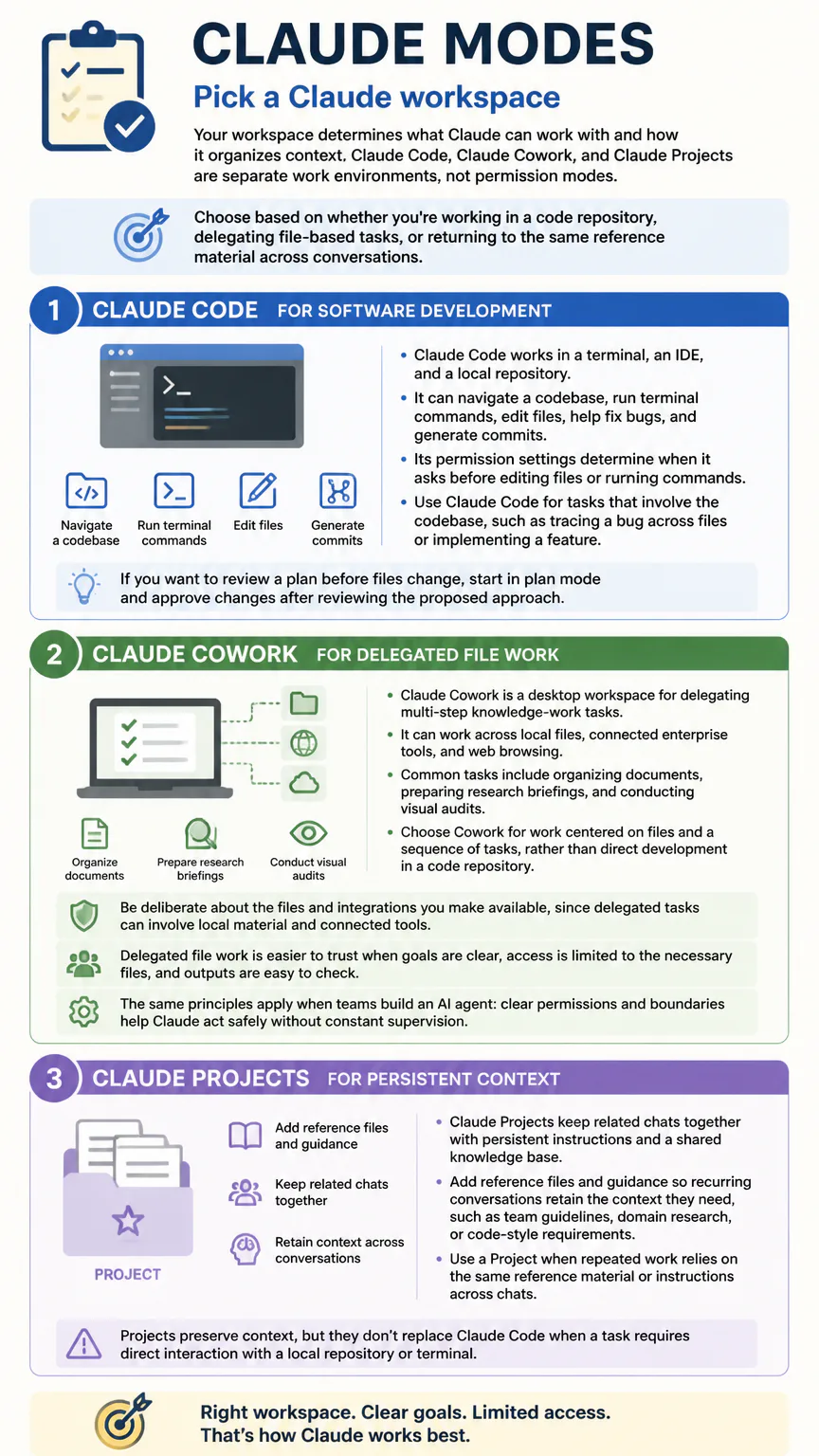
Your workspace determines what Claude can work with and how it organizes context. Claude Code, Claude Cowork, and Claude Projects are separate work environments, not permission modes. Choose based on whether you’re working in a code repository, delegating file-based tasks, or returning to the same reference material across conversations.
Claude Code for software development
Claude Code works in a terminal, an IDE, and a local repository. It can navigate a codebase, run terminal commands, edit files, help fix bugs, and generate commits. Its permission settings determine when it asks before editing files or running commands.
Use Claude Code for tasks that involve the codebase, such as tracing a bug across files or implementing a feature. If you want to review a plan before files change, start in plan mode and approve changes after reviewing the proposed approach.
Claude Cowork for delegated file work
Claude Cowork is a desktop workspace for delegating multi-step knowledge-work tasks. It can work across local files, connected enterprise tools, and web browsing. Common tasks include organizing documents, preparing research briefings, and conducting visual audits.
Choose Cowork for work centered on files and a sequence of tasks, rather than direct development in a code repository. Be deliberate about the files and integrations you make available, since delegated tasks can involve local material and connected tools.
Delegated file work is easier to trust when goals are clear, access is limited to the necessary files, and outputs are easy to check. The same principles apply when teams build an AI agent: clear permissions and boundaries help Claude act safely without constant supervision.
Claude Projects for persistent context
Claude Projects keep related chats together with persistent instructions and a shared knowledge base. Add reference files and guidance so recurring conversations retain the context they need, such as team guidelines, domain research, or code-style requirements.
Use a Project when repeated work relies on the same reference material or instructions across chats. Projects preserve context, but they don’t replace Claude Code when a task requires direct interaction with a local repository or terminal.
Choose a model and effort level
Your model choice affects response speed and capability. Where the setting is available, effort controls how much deliberation Claude applies. Neither setting changes Claude Code’s permission rules, and a more capable model or higher effort level doesn’t guarantee a correct answer.
Sonnet: A balanced starting point for everyday writing, analysis, and coding.
Opus: Use it for complex tasks that demand more involved reasoning.
Haiku: A lightweight option for quick answers and simpler work.
Higher effort gives the model more budget for deliberation and can use more tokens. Increase it when a task calls for deeper analysis; keep it lower for straightforward requests when speed and token use matter. In Claude Code, use /model to choose a model and /effort to adjust effort where supported.
Claude’s web, desktop, and mobile apps let you select available models and reasoning settings. Options vary by interface and account. These apps don’t add to Claude Code’s permission modes.
Claude’s effort setting controls how much reasoning it applies. A quick rewrite needs little deliberation, while a multi-step analysis may benefit from a higher Claude effort levels setting, though it can take longer.

Switch modes in Claude Code
You can change permission settings during a session or start Claude Code in a chosen mode. The controls vary by mode: cycling through common options won’t show every permission setting.
Press Shift+Tab to cycle through Manual, acceptEdits, and plan.
Set dontAsk separately when it suits the task.
Start a session in plan mode with –permission-mode plan.
Use /plan to apply planning to a prompt, then press Ctrl+G to open a proposed plan in an editor.
Use /model or /effort to change those settings where supported.
Plan mode lets you inspect a repository and review a proposed sequence of steps before approving edits. Avoid –dangerously-skip-permissions for ordinary development: it starts Claude Code with permission prompts bypassed and is intended only for isolated, disposable environments.
Claude model API pricing
API rates are charged per million input and output tokens, and vary by model. Rates can change, so check current pricing before budgeting for a new project.
Model | Input per million tokens | Output per million tokens |
|---|---|---|
Claude Haiku 3.5 | $0.80 | $4 |
Claude Sonnet 3.7 | $3 | $15 |
Claude Opus 4 | $15 | $75 |
FAQs
What are the five levels of Claude?
There is no single five-level system that applies to all Claude settings. Permission modes, model choices, and reasoning effort are separate controls, and available effort options can depend on the interface and model.
Does Claude Code auto mode skip all permission checks?
No. Auto mode uses background classifier review to reduce prompts, but it doesn’t allow unrestricted execution. bypassPermissions is the setting that skips permission prompts.
Which Claude mode is best?
Choose Claude Code for repository work, Cowork for delegated file-based tasks, and Projects for recurring work with persistent context. In Claude Code, choose a permission mode based on how much approval you want before actions run.

Conclusion
Choose the setting that matches your need: a workspace for the kind of work, a model and effort level for response needs, or a permission mode for action approval. When working with important files or systems, keep approval in the workflow and use the least permissive setting that supports the task.