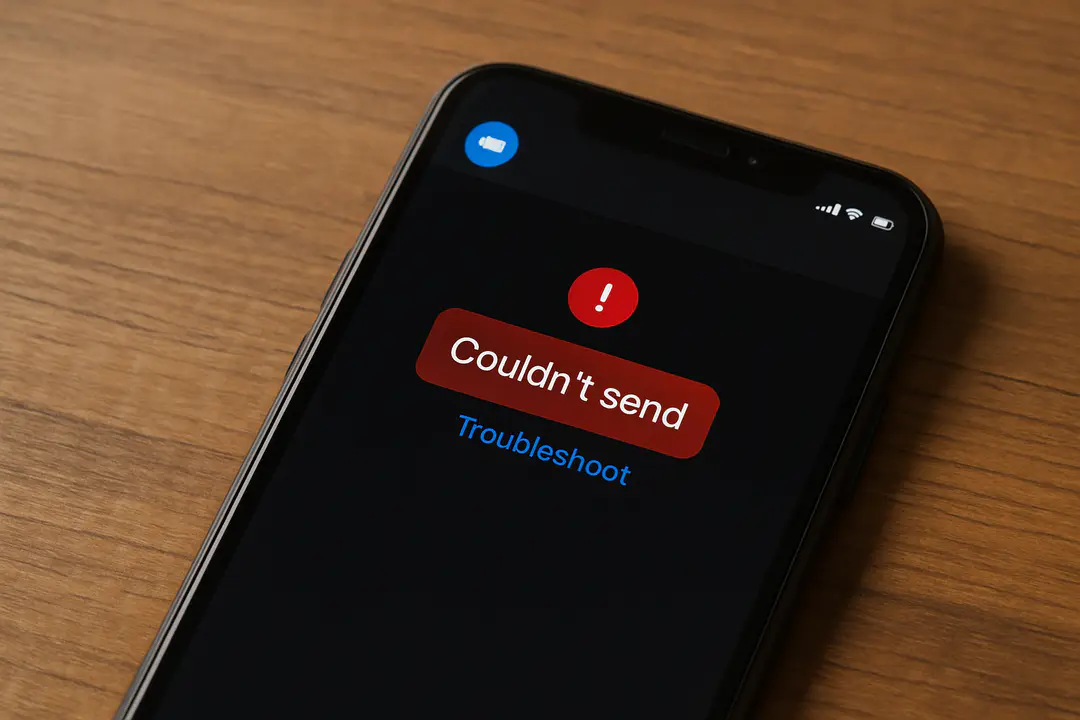
Messenger Says Couldn’t Send in Red Error: Troubleshoot
We rely on Messenger every day to stay in touch with loved ones, share quick updates, and coordinate plans effortlessly. Yet there is a signal we often see but overlook, the small red exclamation mark when a message fails to go through. That little red mark can quietly interrupt our chats and leave us wondering what went wrong. Why does Messenger says “couldn’t send in red” and how can we prevent that from showing up at the worst moments?
That red error is often a sign of a simple hiccup or a deeper issue in the app, settings, or connection. By understanding its root causes, we can solve the problem faster, keep our conversations flowing, and avoid frustration. Knowing what to check first saves time and gives control back to the user. It can also prevent unwanted surprises, like a missed update or a blocked permission causing the hiccup.
Understanding Red Error
When you tap send and see your message bubble turn red, Messenger is telling you “I tried, but I couldn’t deliver.” On Android and iOS, this appears as a red exclamation icon next to your text. On desktop, the icon may be red or grayed out, but clicking it still prompts a retry. Messenger uses different colors to show stages: gray while sending, blue or white when sent, and red when it fails.
This error can occur with text, images, links, and voice notes alike. Sometimes a file attachment is too large or corrupted. Other times, it is purely a network hiccup. The mobile app may show only the icon, while the desktop version will display a hover tooltip with more detail or an error code. That code can be a clue when searching online for a specific solution.
A good first step is to tap on the red icon. Often you’ll see a prompt to retry or view more info. If you retry and it works, chalk it up to a momentary glitch. If it fails again with the same code, jot down that number. A quick web search on that error code brings up forum threads or official Facebook help pages.
Finally, remember that Messenger ties into Facebook’s servers. If those systems have an outage, your messages may all stay red until they recover. Sites that track outages can confirm if the problem is widespread. In that case, patience is the only real fix.
Common Causes Explained
Behind every red send error there are a handful of usual suspects. Identifying which one is at work helps you resolve the issue faster. Here are the top culprits:
- Poor network signal or spotty Wi-Fi.
- App permissions blocked for data or background use.
- Corrupted cache or temporary files conflict.
- Server outages on Facebook’s end.
- Attachments flagged as unsafe or too large.
Poor signal is the most frequent reason. If you step out of a building or lose cell towers, the app may begin sending and then fail. Moving back into a service area often cures this within seconds. For Wi-Fi, your router might still show connected even if its uplink dropped.
Attachments can cause errors when they exceed Messenger’s size limits, or if the file type is unsupported. Video clips over 25 MB or certain animated GIFs sometimes stall. Slim down attachments by compressing files or sending links instead. That simple change can clear the red icon instantly.
Corrupted cache is another hidden issue. Over time, temp files build up and may clash with new updates. A quick cache clear forces the app to rebuild those files from scratch. That alone can fix stubborn send failures.
Server outages are rare but worth checking. You can search social feeds or outage-tracking sites to see if Facebook services are offline. If so, there is no local fix but to wait until the network is back online.
Check Your Connection
Internet stability is the foundation of any chat app. A momentary drop can lead to red errors. To test, open a browser on your phone or PC and load a page. If that fails, your network is at fault. Apps like Speedtest can measure latency, download, and upload speeds in real time.
Switching between Wi-Fi and mobile data is a fast way to isolate the issue. If your Wi-Fi is misbehaving, try mobile data or a known public hotspot. If mobile data is poor, return to a reliable Wi-Fi network. Fluctuations in signal strength are often the main culprit.
Advanced users can also ping a server or traceroute to diagnose packet loss. For most people, turning Airplane Mode on and off resets the radios. A router reboot can also clear lurking network loops or firewall blocks.
In some cases a VPN or security app may block Messenger traffic. If you suspect deeper network controls at play, consult resources on network security and control. That guide explains how to spot hidden filters and test unfiltered connections.
Once your internet returns to normal, open Messenger and tap the red icon to retry. A fresh connect often sends the message without further action.
Fix Permissions Issues
App updates or security tools can reset permissions without telling you. If Messenger loses rights to use data or run in the background, sent messages get stuck. Checking permissions should be on your troubleshooting list.
On Android, open Settings, choose Apps, then tap Messenger. Select Permissions and verify that Data, Storage, and any needed background options are on. On iOS, go to Settings then scroll to Messenger. Allow Mobile Data and turn on Background App Refresh.
Don’t forget battery saver modes. These can freeze apps when they run in the background. If you use power-saving features, add Messenger to the whitelist or disable it temporarily. That keeps the app active when you need to send a message.
After adjusting any permission, reboot your device. A restart ensures new settings are applied. Open Messenger again and tap the red exclamation to retry. If it sends, you’ve found the root cause.
Keeping permissions in order can also help you manage a cluttered chat list. For tips on keeping conversations running smoothly, see our chat organization guide on effective inbox management. A tidy setup surfaces errors faster and keeps you in control.
Clear App Cache
Cache files store temporary data that speeds up tasks like image loading or quick app launches. But as they grow, they can become corrupted and block functions, including sending messages. Clearing the cache removes all temp files without deleting your login or chat history.
On Android devices, follow these steps:
- Open Settings and pick Apps or Applications.
- Locate Messenger in the list and tap it.
- Select Storage or Storage Usage.
- Tap Clear Cache to remove only temp data.
- Return to Messenger and retry your message.
For iPhone users, the only way to clear cache is to delete and reinstall the app. Touch and hold the Messenger icon, choose Delete App, then head to the App Store to download a fresh copy. Your chats stay intact on Facebook’s servers.
Be aware of the difference between Clear Cache and Clear Data. The latter removes settings and saved logins. Stick to Clear Cache first to minimize hassle. Once done, the app rebuilds its temp files. Try sending again by tapping the red icon. It should now go out without error.
Keep App Updated
Developers constantly fix bugs and improve performance. An outdated version of Messenger may have known issues that cause false errors. Checking for updates is a quick and effective step.
Open your device’s app store, search for Messenger, and see if an update is listed. Install any available updates and then launch the app. In many cases, the latest version includes a patch for send failures.
You can also join beta or preview programs to get fixes earlier. On Android, enroll in the beta via the Play Store page. On iPhone, TestFlight may offer upcoming versions. Beta builds can be less stable but often solve key issues faster.
If an update leaves you worse off, you can sideload an older APK on Android. That gives you control over the version you run. Just download from a trusted mirror and install. On iOS, rolling back is harder, but app archives on your computer may help if you backed up earlier.
Finally, consider enabling auto-updates for critical apps. This eliminates the manual step and keeps you on the latest release. A well-maintained app reduces the chance you’ll see that red icon ever again.
Conclusion
Seeing a red exclamation in Messenger can feel like a small but frustrating roadblock. It tells you that your message didn’t go through and needs attention. The good news is the fix is usually at hand, from testing your network and reviewing permissions to clearing cache and updating the app.
By following a methodical approach—check connection, fix permissions, clear cache, update—you turn a red warning into a quick retry. Keeping your app environment clean and current is the best defense against send failures. A tidy cache, correct settings, and fresh software make your chats seamless.
Next time red appears, use this guide to regain control and send with confidence. With a few simple steps, you’ll resolve the issue and stay connected without missing a beat.




![How to Create a Discord Account [Step-by-Step Guide]](https://thegeekinsights.com/wp-content/uploads/2024/02/How-to-Create-a-Discord-Account-768x576.webp)