Proxy for Steam: What It Is and How to Use It
A Steam proxy is an internet-based service that functions as a middleman between your device and Steam’s servers. When you use a proxy, your internet traffic is redirected through a specialized server, allowing you to take advantage of a range of useful features.
Why Use a Proxy for Steam?
Employing a proxy when using Steam opens up multiple possibilities and addresses several key needs.
Access to Region-Locked Games
Some game developers and publishers limit access to their titles based on geographic location. By using a proxy server, you can effectively change your digital location. This allows you to bypass regional restrictions and access games that are otherwise unavailable in your country, appearing as though you’re connecting from an approved region.
Changing Your Account Region
There are instances where you might need to relocate your Steam account to a different country—for example, to gain access to newly released games that aren’t available in Russia. A proxy enables this type of region transfer, helping you update your account’s region with minimal hassle.
Buying Games at Lower Regional Prices
Game prices on Steam vary from one region to another, sometimes quite dramatically. By connecting through a proxy and selecting a region with more affordable pricing, you can make purchases at significantly reduced costs, which is especially beneficial during major sales.
Using Steam on Networks with Restrictions
If Steam is blocked on your current network—such as at work, school, or university—a proxy provides a workaround. By sending your data through an external server, your activities are masked from local network controls, allowing you to sign into Steam and continue gaming uninterrupted.
Choosing a Reliable Proxy Service like Belurk
Opting for a trusted proxy provider like Belurk ensures both secure and stable connections when using Steam.
Belurk Offers:
- High Performance and Stability: Routes are optimized for smooth, fast performance and minimal lag.
- Enhanced Privacy: Strong encryption protocols safeguard your personal data, particularly useful when using public or shared networks.
- Wide Regional Selection: A broad network of servers in different parts of the world lets you tailor your connection to your exact needs.
Overall, a proxy supported by a service like Belurk becomes a universal tool for unlocking a more convenient, adaptable, and budget-friendly Steam experience.
Setting Up a Proxy for Steam
Windows
There are a few different methods to configure proxy settings in Windows 10:
Automatic Setup
This is the easiest way to activate proxy settings, allowing Windows to automatically detect and configure everything on your behalf.
To enable automatic configuration:
1. Click the Start button on your desktop.
2. Open the Settings menu.
3. Go to Network & Internet.
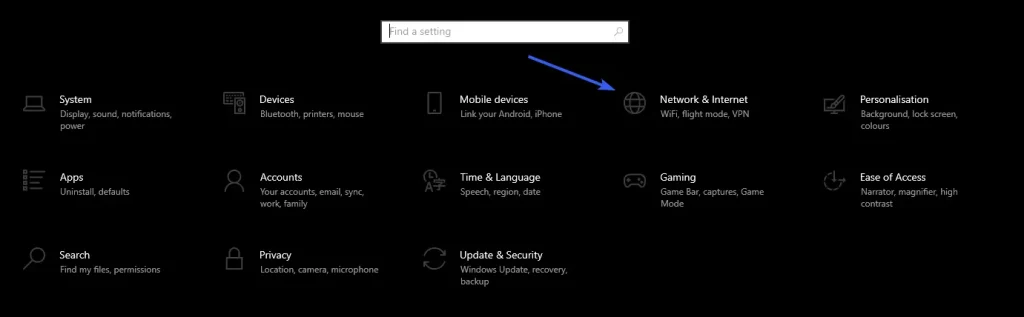
4. In the side panel, select Proxy.
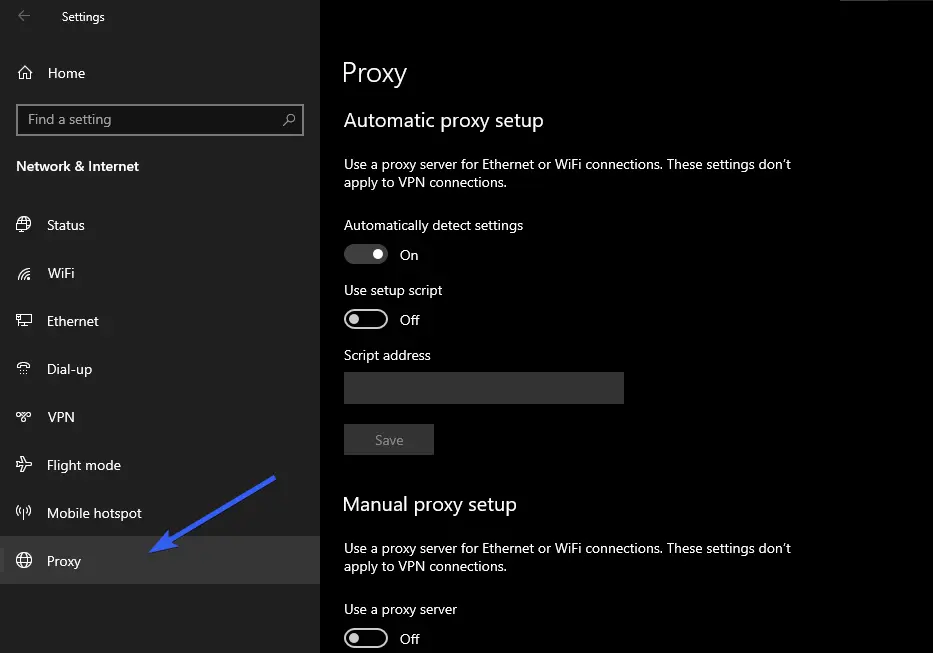
5. Locate the section labeled Automatic proxy setup.

6. Turn on the Automatically detect settings option.
Once these steps are completed, Windows will handle the proxy server setup without needing any manual input from you.
Manual Setup
If you already have the necessary details—such as the proxy server’s IP address and port number—you can enter them manually.
Here’s how:
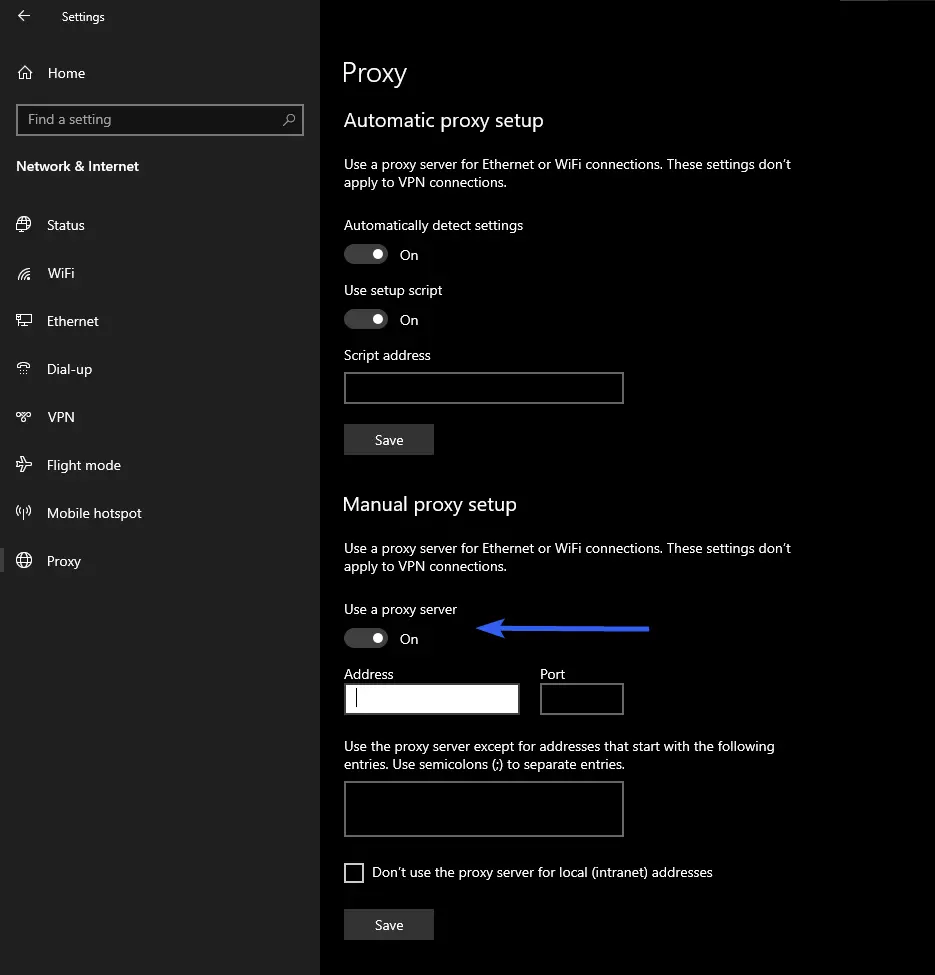
- In Settings, navigate to Network & Internet > Proxy.
- Scroll down to the Manual proxy setup section and enable the Use a proxy server toggle.
- Fill in the required Address and Port fields using the details provided by your proxy service or network administrator.
- If you’d like to bypass the proxy for specific websites, add them to the exceptions list. Use domain formats such as *.example.com to cover entire sites, or separate multiple domains with semicolons like *.example.com; *.othersite.com.
- Note: An asterisk (*) serves as a wildcard that matches all addresses within a specified domain.
- Decide whether to check Don’t use proxy server for local addresses based on your organization’s needs. If the proxy is unnecessary for internal network traffic, enable this setting.
- Click Save to apply your changes.
Your internet traffic will now be routed through the proxy server, except for any sites you’ve excluded.

macOS
On macOS, proxy settings are configured manually. Follow the steps below:
- After renting a proxy, download the configuration file. This file will contain essential connection details such as the proxy’s IP address, port number, username, and password.
- From the Apple menu, select System Preferences.

Conclusion
Using a proxy for Steam is a smart move for gamers looking to expand their access, protect their privacy, or save money. Whether you’re bypassing regional restrictions, taking advantage of lower international prices, or simply trying to use Steam on a restricted network, a reliable proxy like Belurk can make all the difference. With the right setup—on either Windows or macOS—you can enjoy a smoother, more flexible, and more secure gaming experience. So, if you’re ready to take control of your Steam usage, a well-configured proxy might be the key to unlocking a better way to play.