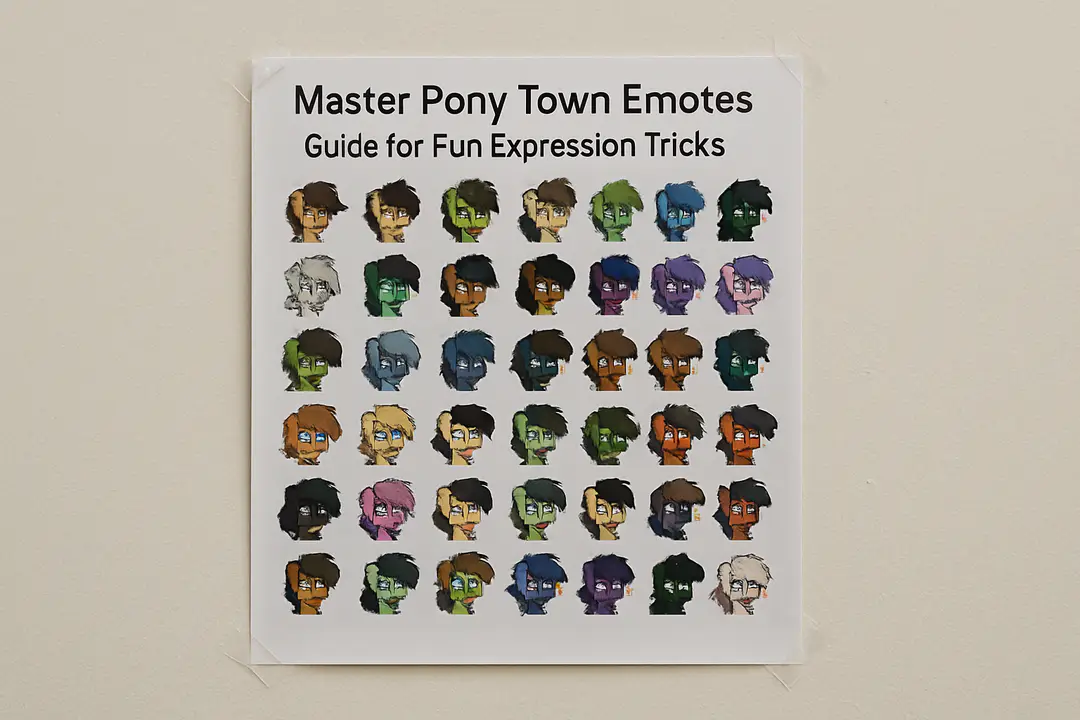
Master Pony Town Emotes Guide for Fun Expression Tricks
Playing Pony Town is a delightful way to connect with creative friends. Yet many players overlook the power of emotes for storytelling and social flair. Emotes go beyond simple expressions: they shape your pony’s personality and help you stand out. How often do you wonder if you’re using emotes to their full potential?
Mastering Pony Town emotes can change how you interact and express yourself. By understanding the hidden commands, crafting custom animations, and avoiding common pitfalls, you’ll save time and shine in every session. A few smart tweaks can keep you ready for any roleplay or social event without awkward pauses or glitches.
Emote Basics
Emotes are short commands typed in chat to trigger animations or text actions. Learning the basic syntax is key. In Pony Town, most emotes start with a slash (/). For example, typing /wave makes your pony wave. These built-in commands let you express joy, sadness, or confusion without typing long messages. You’ll find the emote bar above the chat field for quick access.
There are dozens of emotes available by default. You can find a list in the info menu or by pressing the emote icon above your chat box. Common ones include /laugh, /cry, and /dance. Remember to type them exactly; a missing slash or typo will show the text instead of the action. Bookmark your favorites for faster use during fast-paced roleplay.
Using emotes at the right moment boosts your roleplay. If you’re in a friendly gathering, /clap shows appreciation. During a dramatic scene, /cry can add emotion. Try timing your emotes with music or background events to create a multimedia feel. Watch other players and mimic the timing to see how pros use them.
Practice makes perfect. Spend a few minutes each session trying different emotes. Combine text chat with animations: say “I’m ready!” and then /run to show off. This builds muscle memory and keeps your flow natural. Over time, you’ll rely less on the list and more on instinct.
Emote Basics offers a foundation. Once you know these commands, you’re free to explore custom options and creative combos that fit your style. Next, we’ll dive into creating your own unique emotes and adding a personal touch.
Custom Emote Creation
Creating custom emotes in Pony Town lets you express actions and scenes that the default set doesn’t cover. You can design an emote for a special dance, a unique gesture, or even a dramatic pose. The first step is selecting or drawing a sprite. Use the in-game character creator tool to test outfits and see how movements flow with your pony. Save your custom frames in PNG format with a transparent background.
Next, prepare your files. Keep each emote in its own folder and name each frame in sequence: emote1.png, emote2.png, and so on. Aim for four to six frames per animation to keep file sizes small. The game will loop through them quickly for a smooth effect.
Here are the steps to import your own emotes:
- Open Pony Town installation directory.
- Create or locate the “custom_emotes” folder.
- Place your emote folders inside.
- Launch the game and open settings.
- Enable “Custom Emotes” in the advanced tab.
After importing, test your new emote with the slash command /custom1 or /custom2 depending on your folder name. Tweak frame timing by renaming files to include delays, like frame-100ms.png. This level of control allows you to craft slow, dramatic gestures or quick, playful hops.
Custom emotes can set you apart in any event or roleplay. Share your folder with friends so they can use your creations too. Just remember to keep files small to prevent lag. With these steps, your pony can now perform any action you imagine.
Emote Combos
Using single emotes is fun, but combining them in quick succession unlocks a whole new level of expression. Try pairing an action with a text message. For instance, type “Let’s dance!” then immediately /dance. The text sets the stage, and the emote delivers the visual. You can also mix pauses: type “One… two…” then /jump to build suspense.
To create a smooth sequence, use chat history navigation. Press the up arrow to recall your last command, edit it, and send again. This cuts down typing time. You could set up a mini-show: /jump, /spin, /hitch while shouting “Ta-da!” This sequence feels like choreography. Consider using nearby props or maps. On a snowy map, a /snowball emote could start a playful skirmish.
Here’s how to plan a combo:
- Outline the scene: celebration, greeting, or drama.
- List three to five emotes that match the mood.
- Practice in a private or low-traffic room.
- Time commands with background music or a metronome.
- Use short text cues to guide other players.
Emote combos shine in group events. You can cue friends to join with a simple “You first!” followed by /point. Watching everyone follow in sync builds community spirit. If you want more polished timing, count beats or use an external timer app for precise cues.
Experiment often. Some players record their sessions to see where timing drags. Adjust delays by adding or deleting frames in your custom emotes. Mix built-in animations with custom ones for a richer palette. The more you play, the more natural your combos feel. Soon, you’ll host quick dance-offs or mini-theatre pieces that wow your friends and highlight your creativity.
Roleplay and Events
Pony Town thrives on community events and roleplay sessions. Emotes bring characters to life and make scenes believable. Before joining an event, skim a detailed game guide or chat with hosts to learn the theme. Whether it’s a royal court, festival, or mystery night, you’ll need the right emote set to match the mood.
Event organizers often share a list of recommended emotes. Download any custom folders they provide and load them into your custom emotes folder. At the start of the event, do a quick soundcheck: type /dance or /cheer to ensure everything loads. This avoids awkward pauses once the roleplay begins.
During a roleplay, pay attention to scene cues. If the host says “The town bells ring,” you might use /listen or /look. These reactive emotes show respect for the pacing and keep you in character. Observers appreciate players who use emotes promptly and accurately.
Here are tips for event success:
- Learn the theme and mood before joining.
- Test all emotes in a quiet corner.
- Keep emote commands short and clear.
- Watch for host signals and react fast.
- Coordinate combos to add flair to group scenes.
Joining regular gatherings builds your reputation. Hosts notice reliable players who nail their cues. Eventually, you might co-host or run your own event. Emotes then become the backbone of storytelling, guiding players through drama, humor, or action without breaking immersion.
Troubleshooting Emotes
Sometimes, emotes don’t work as expected. You might see text instead of animation, or your custom emote stalls. Before panic, check the simplest issues. Ensure you’ve used a leading slash and typed the emote name correctly. For custom emotes, verify your folder names match the command (e.g., “custom1”).
If built-in emotes fail, it’s often a network or cache issue. Reload the page or restart the game client. Clear your browser cache if you play in a web browser. This refreshes scripts and assets, which can fix missing animations quickly.
Follow these troubleshooting steps:
- Check spelling: slashes and command names are case-sensitive.
- Reload Pony Town or press F5 in the browser.
- Clear cache or cookies if you use the web version.
- Ensure custom emote folders are in the correct directory.
- Verify that the “Enable Custom Emotes” setting is on.
For persistent issues, visit the official forums or community chat. Other players may have experienced the same bug and found a workaround. You can also compare with a friend by asking them to test your emotes on their account. This helps isolate whether the problem is on your end or the game server.
Also, double-check that your PNG files are not corrupted. A bad frame can halt the whole animation. Open each in an image viewer before importing. Converting them to a standard color profile (sRGB) can prevent display issues. Minor file tweaks often fix big problems.
By following these checks, you’ll avoid surprises in the middle of a roleplay or event. Keeping a calm approach saves time. And remember, regularly updating your game client ensures you have the latest bug fixes and features. With these tips, you’ll keep your emotes running smoothly every session.
Emotes are more than gimmicks in Pony Town. They shape stories, spark laughter, and bring people together. By mastering built-in commands, creating custom animations, and combining them with clever timing, you unlock a deeper layer of play. You can stand out in events, host memorable gatherings, and simply enjoy a richer social experience.
Remember to test new emotes, follow best practices, and update your files regularly. When you troubleshoot issues calmly and use reliable sources like the community chat or a trusted how-to-play Pony Town post for reference, you’ll avoid surprises. Now it’s your turn: experiment with custom designs, mix emote combos, and lead your friends in epic roleplay. The next big scene in Pony Town could be yours.