Kimi Browser Extension — for AI Agents
The Kimi Browser Extension connects AI agents to Chrome or Microsoft Edge so they can interact with live webpages and existing signed-in sessions. Formerly called Kimi WebBridge, it supports several coding agents as well as a Kimi sidebar workflow. The right setup depends on which browser and agent you use, whether you prefer a desktop app or terminal, and what access you’re comfortable giving an automated task.
Kimi Browser Extension at a Glance
Extension aspect | Kimi Browser Extension details |
|---|---|
Product | Kimi Browser Extension |
Developer | Moonshot AI |
Former name | Kimi WebBridge |
Purpose | Local browser control for AI agents |
Browser actions | Open pages, navigate, click, fill forms, extract information, take screenshots |
Control mechanism | Chrome DevTools Protocol (CDP) |
Supported browsers | Chrome, Microsoft Edge |
Supported operating systems | macOS, Windows |
Compatible agents | Claude Code, Codex, Cursor, Kimi Code, Hermes Claw |
Usage modes | Browser sidebar, local-agent control |
Browser sessions | Existing signed-in sessions |
Sidebar account | Kimi account sign-in |
Connection requirement | Stable network connection |
How the browser bridge works
The extension connects an AI agent to an open browser through a local bridge service. The agent sends a task, such as opening a page or collecting product details, and the browser carries out the actions. Chrome DevTools Protocol (CDP) handles browser control.
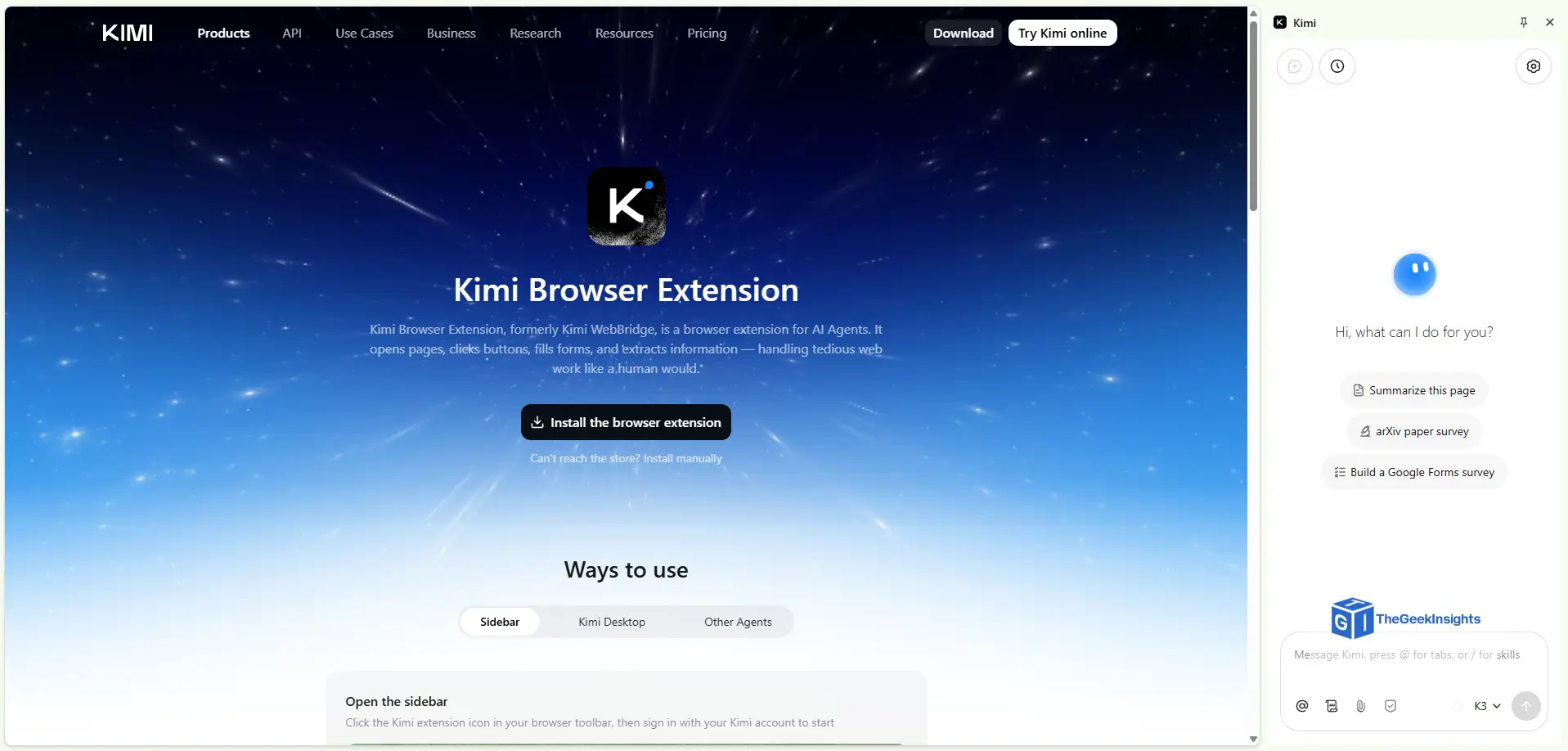
You can also open the extension’s sidebar and sign in with a Kimi account to use its browser experience. In agent mode, the connected tool controls the browser on your computer. Because it can use an existing signed-in session, the agent may be able to access pages and account areas already available in that browser.
Which agents can connect
The compatible agents include Claude Code, Codex, Cursor, Kimi Code, and Hermes Claw. Kimi Code CLI is the terminal-based Kimi Code option. Claude Code and Cursor can also drive browser tasks, and the extension supports both coding-agent workflows and Kimi’s sidebar.
Setup varies by agent. Kimi Work connects through a plugin, while Kimi Code CLI requires its extension plugin. Other local agents need an integration that connects them to the browser extension.
Install and connect an AI agent
Install the extension in the browser you want to control, then follow the steps for your agent. Kimi Work uses a desktop app and plugin marketplace; Kimi Code CLI is for terminal-based tasks. You can also use the browser sidebar by opening the extension from the toolbar and signing in with a Kimi account.
Chrome: Find the extension in the Chrome Web Store and install it.
Microsoft Edge: Find the extension in Edge Add-ons and install it.
Connect through Kimi Work
Install the Kimi Browser Extension in Chrome or Edge.
Open Kimi Work, the desktop companion app.
Enable the extension through Kimi Work’s plugin marketplace.
Use the extension in Work mode.
Connect through Kimi Code CLI
Install Kimi Code CLI and sign in.
Install the browser extension plugin.
Reload the current session or start a new one.
Give the agent a browser task in the CLI.
A browser connection gives an agent access to pages and controls, but its goals, instructions and tool-use logic determine how it uses them. Those same pieces matter when you build an AI agent.
Tasks you can automate
Give a compatible agent a specific goal and the relevant pages. It can operate the browser, read page content, and return information for the task, replacing manual clicks or a custom automation script for some workflows.
Search product pages and gather prices or listed specifications.
Open multiple pages and collect results for a research task.
Navigate forms and enter information into fields.
Click page controls, follow links, and move through a website.
Capture screenshots or extract page information for later use.
You can turn browser operations for frequently used sites into reusable commands or agent skills. Review forms and transactions before the agent submits them, especially if they change account details, place an order, or share personal information.
A browser agent can search and interact with live websites much like a person. For repeated searches across managed enterprise content, a dedicated Sitecore search connector may be more direct than browser automation.

Sessions, privacy, and limitations
Browser actions run through the local connection, and the extension can use sessions that are already signed in. That means an agent may be able to view information or take actions available to that browser session. Use a browser profile with appropriate access, and avoid giving a task more permissions than it needs.
Local browser control does not determine how an agent handles task instructions, page content, or other data it processes. That depends on the connected agent and its service. Take care with sensitive pages, check actions before submitting them, and close or disconnect the browser workflow when you’re finished.
The extension supports Chrome and Microsoft Edge on macOS and Windows, and requires a stable network connection. Pages that update dynamically, require extra verification, or change their layout can interrupt automation. The agent may need clearer instructions or human help to continue.
Choosing an AI Browser Extension
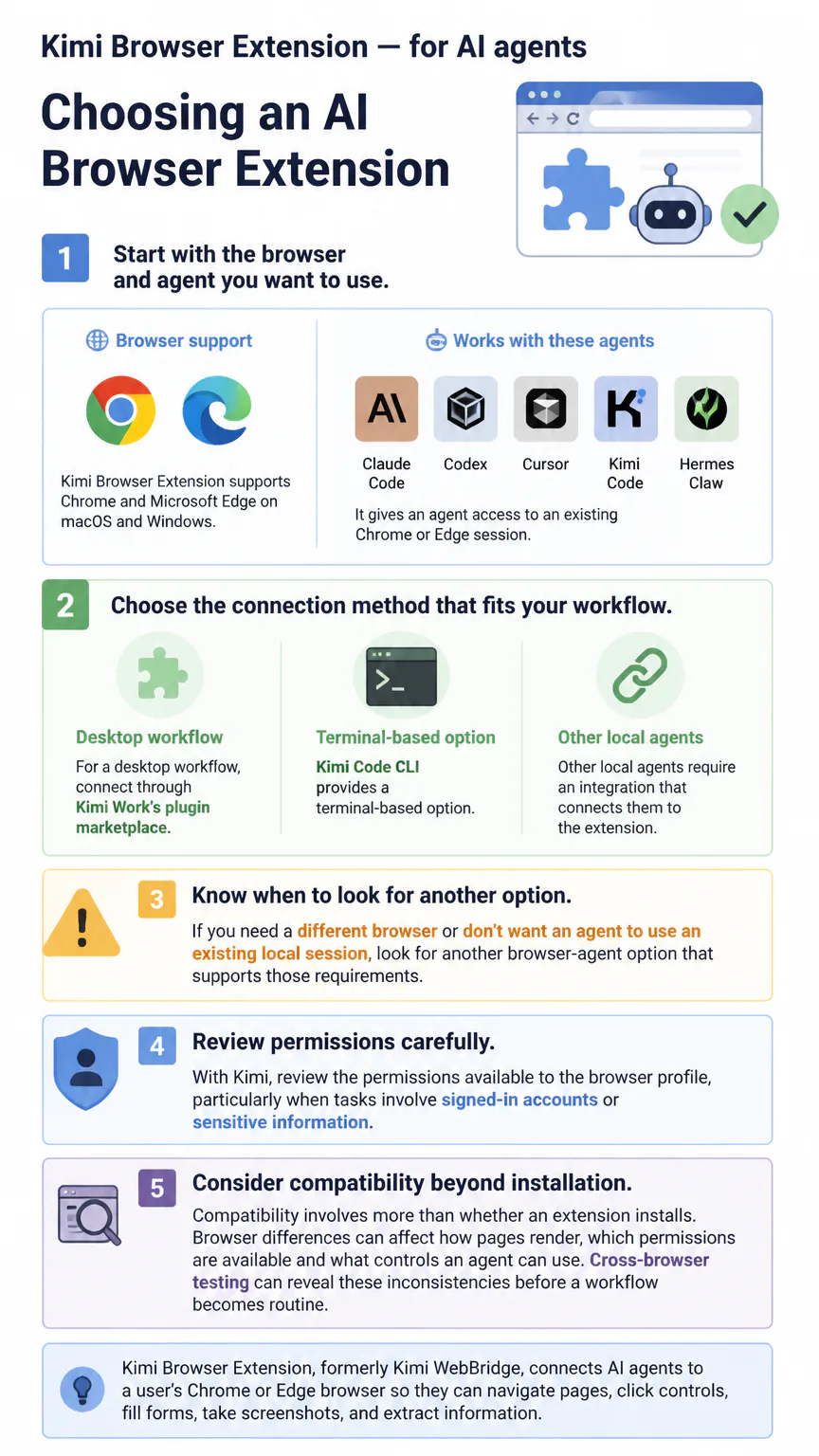
Start with the browser and agent you want to use. Kimi Browser Extension supports Chrome and Microsoft Edge on macOS and Windows, and works with Claude Code, Codex, Cursor, Kimi Code, and Hermes Claw. It gives an agent access to an existing Chrome or Edge session.
For a desktop workflow, connect through Kimi Work’s plugin marketplace. Kimi Code CLI provides a terminal-based option. Other local agents require an integration that connects them to the extension.
If you need a different browser or don’t want an agent to use an existing local session, look for another browser-agent option that supports those requirements. With Kimi, review the permissions available to the browser profile, particularly when tasks involve signed-in accounts or sensitive information.
Compatibility involves more than whether an extension installs. Browser differences can affect how pages render, which permissions are available and what controls an agent can use. Cross-browser testing can reveal these inconsistencies before a workflow becomes routine.
FAQs
Can website workflows be reused?
Yes. Frequently used websites can be turned into command-line tools, and recorded browser operations can be packaged as Skills for an agent. The agent can then reuse a workflow instead of receiving each browser action as a new task.
Who are the big four AI agents?
There is no standard set of “big four” AI agents in this context. Kimi Browser Extension lists Claude Code, Codex, Cursor, Kimi Code, and Hermes Claw as compatible agents; the list is not a ranking.
Conclusion
Kimi Browser Extension connects compatible agents to Chrome or Edge on your local browser. Use Kimi Work for a desktop interface or Kimi Code CLI for terminal-based control, and check access carefully when tasks involve signed-in accounts or sensitive actions.