
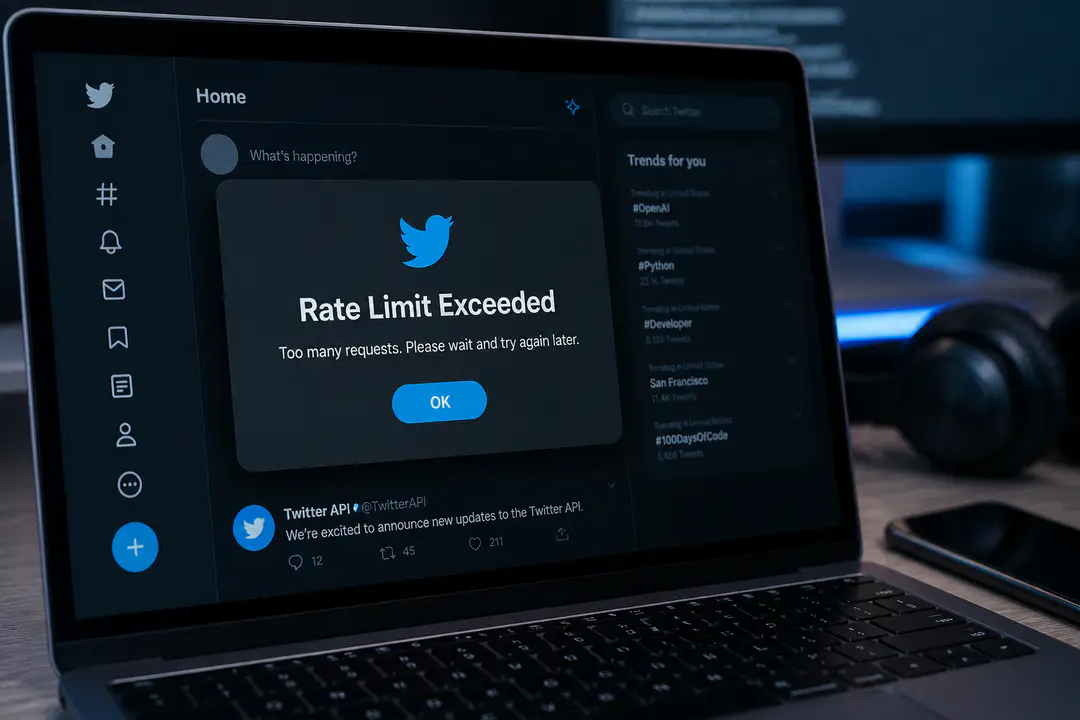
Rate Limit Exceeded Twitter: How to Fix the Error
When the rate limit exceeded twitter message appears, simple tasks like loading your timeline or opening profiles can suddenly stop working. It often shows up without much warning, which makes the cause harder to spot. This can affect casual browsing as well as account-heavy workflows. Knowing where to check first can save a lot of time and frustration.
Key Takeaways
- The error means Twitter has placed a temporary restriction on your account activity, login session, or connected services after hitting usage caps or detecting app-related requests.
- Removing third-party connected apps and signing in through a fresh browser session often clears the issue faster than waiting alone.
- Using a VPN or avoiding the Twitter mobile and desktop apps can restore access temporarily when the problem appears tied to location, app caching, or account sessions.
Fixing Twitter Rate Limit Exceeded Error
Understanding the Error Message
“Rate limit exceeded” means Twitter has stopped serving some requests from your account or session for a period of time. You may notice your timeline not loading, tweet viewing limits being reached, search failing, profile loading errors, or repeated prompts while logged in. In technical terms, some requests return a 429 status, which simply means too many requests were made in a set window.
This can happen because of a daily cap, a burst of activity, a stuck login session, or requests coming from connected apps in the background. In many cases, the message is linked more closely to third-party connected apps than people expect. Accounts connected to services such as Apple, Instagram, Medium, Hootsuite, TweetDeck, or older third-party tools have been flagged by users as common sources of repeated requests.
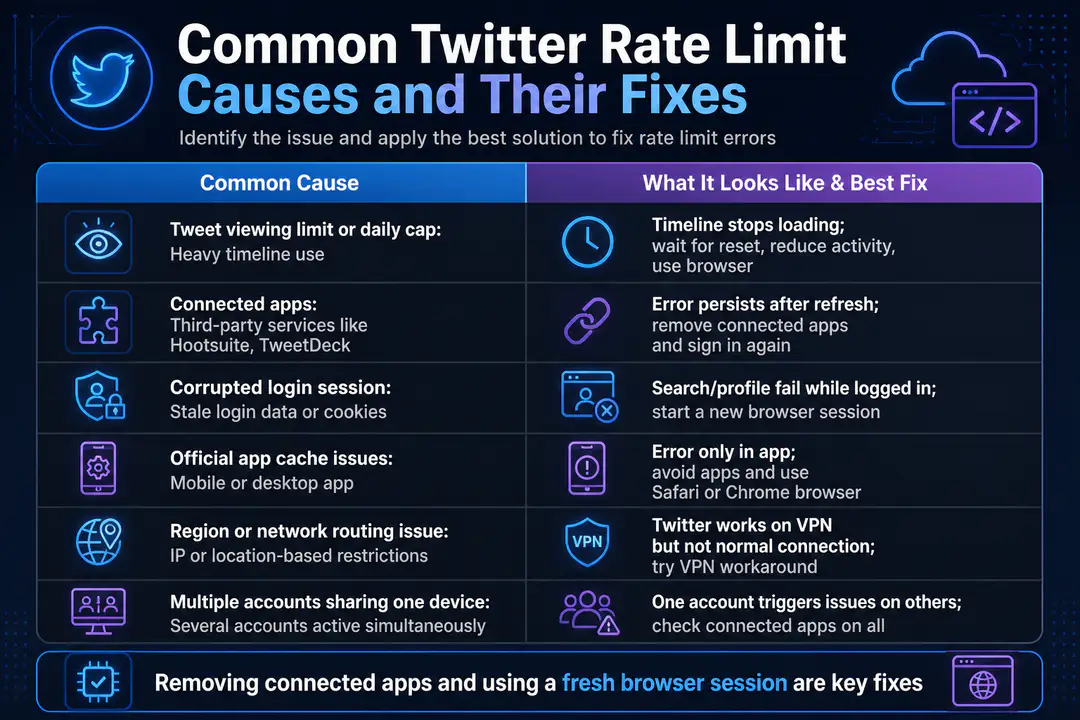
| Common cause | What it looks like | Best fix |
|---|---|---|
| Tweet viewing limit or daily cap | Timeline stops loading after heavy use | Wait for reset, reduce activity, use browser |
| Connected apps | Error returns even after refresh | Remove connected apps and sign in again |
| Corrupted login session | Search, profile, and replies fail while logged in | Start a new browser session |
| Official app cache issues | Mobile or desktop app keeps showing the error | Avoid apps and use Safari or Chrome |
| Region or network routing issue | Twitter works on another connection but not yours | Try a VPN workaround |
| Multiple accounts sharing one device | One account triggers issues on others | Check every account for connected apps |
Removing Third-Party Connected Apps
- Log in to Twitter from a browser, not the mobile or desktop app if possible.
- Open your account settings and find the section for security, account access, or connected apps.
- Review every service listed, especially older tools you no longer use.
- Remove app access for anything unnecessary, including social posting tools, login connections, and inactive integrations.
- Sign out of Twitter after removing them.
- Wait a minute, then sign back in and test your timeline, profile, and search.
This step matters because connected apps can continue making requests even when you are not actively using them. If one app keeps polling your timeline or account data, it can push your account-level limit faster than normal use. A similar pattern shows up in other messaging platforms where access rules interrupt normal sign-ins, such as this guide on why my phone number is banned.
Do not just remove one obvious app and stop there. If you manage social accounts, clear out all unused connections first, then re-add only the ones you trust and actually need.
Using a Fresh Browser Session
- Log out of Twitter completely on every open browser tab.
- Close the browser fully, then reopen it.
- Open a private or incognito window in Chrome, Safari, or another browser.
- Go directly to Twitter and sign in again.
- Check whether your home timeline, notifications, profile, and search results now load normally.
- If the problem remains, clear Twitter cookies and cached site data, then repeat the sign-in.
A fresh browser session resets cookies, tokens, and stale login data that can keep the error looping. This is one of the most effective fixes when the account itself is fine but the saved session is not. If you also troubleshoot software behavior across devices, a clean-session habit is useful in many environments, including remote desktop testing applications where cached sessions often hide the real issue.
Avoid opening several Twitter tabs right away after signing back in. Load one page first, confirm it works, then return to normal browsing.
Avoiding Twitter Mobile and Desktop Apps
The official mobile and desktop apps can keep bad session data, old cache files, or background account requests alive longer than a clean browser does. If the error appears only in the app, switching to Safari or Chrome often gets you back into your account faster. This is especially useful when search results, replies, or profile loading fail only while logged in on the app.
Use the browser version until the restriction clears. If you need to keep working, avoid fast refreshes, repeated search queries, and switching between several accounts in the app during the same period.
Trying a VPN Workaround
Some users reported on 7/3 that a VPN connected through another country allowed Twitter to start working again. That points to a network path or regional routing issue in some cases, not only a direct account problem. If Twitter loads on a VPN but not on your normal connection, the restriction may be tied to your IP address, route, or local session handling.
Use this as a workaround, not your first fix. Start with connected apps and a new browser session, then test a VPN if the account still fails to load. If you need help setting one up on a phone, this walkthrough on how to use a VPN covers the basic setup process clearly.
Managing Multiple Twitter Accounts
- Check every account signed in on the same phone, browser, or desktop app.
- Remove connected apps from each account, not just the one showing the error.
- Sign out of all accounts, then test one account at a time.
- Avoid rapid account switching until the limit resets.
- If one account works and another does not, compare their connected apps and recent activity.
- Keep business tools and posting tools attached only to the account that needs them.
Multiple accounts can blur the cause because requests from one account or app connection may continue in the background while another account appears to fail. If one profile still will not load after these steps, wait for the temporary restriction to expire before reconnecting tools.
Common Causes of Rate Limits
Why It Happens
Twitter uses rate limits to control how many actions or views an account, app, or session can make during a set time. These limits affect normal browsing, API requests, search results, and profile loading. During periods of tighter controls, some users hit a tweet viewing limit or daily cap much faster than expected.
The most common causes include:
- Heavy timeline scrolling or repeated refreshes
- Frequent searches in a short period
- Third-party apps making background requests
- Old login sessions or bad cookies
- Several accounts active on one device
- Network or location-based request filtering
There have also been periods where the issue eased without account changes. For example, by 7/2/23 at 6pm ET, at least one affected user reported their account had returned to normal behavior, with tweets, replies, and search working again. That is a reminder that some limits simply need time to reset.
Preventing Future Rate Limits
Reduce Repeat Triggers
- Remove old connected apps and keep only the ones you actively use.
- Use one browser session for Twitter instead of staying signed in everywhere.
- Limit rapid refreshes, especially when search and profiles are loading slowly.
- Do not switch between multiple accounts repeatedly in a short session.
- If the app behaves oddly, move to a browser before the problem gets worse.
- Reauthorize any needed app one at a time so you can spot which one causes issues.
- Watch for account warnings that point to a suspended account or restricted activity, since those need different fixes.
FAQs
How long does the Twitter rate limit exceeded error last?
It lasts until the rate-limit window resets or the trigger is removed. In mild cases, access returns after a short wait; in other cases, clearing connected apps and starting a fresh browser session speeds it up.
Is rate limit exceeded the same as a suspended account?
No. A suspended account is an enforcement action against the account itself, while rate limit exceeded is a temporary restriction on requests, views, or session activity.
Why does Twitter work in a browser but not in the app?
The app can hold old cache files or session data that keep repeating the error. A browser often works because it starts with cleaner request handling, especially in a private window.
Should I reconnect my apps after the error clears?
Only reconnect the apps you truly need. Add them back one at a time so you can identify whether a specific integration causes the problem to return.
Conclusion
The rate limit exceeded twitter error is frustrating, but the fixes are usually straightforward and effective. Start by checking connected apps and trying a fresh browser session before moving on to app-based workarounds or a VPN. If nothing changes right away, be patient while the temporary restriction resets, then test again with a cleaner setup.