Pony Town Controls and Commands Guide for Chat and Movement
Getting around with solid pony town controls is more than just a way to move your character; it’s a way to connect, roleplay, and show off your style. While most players focus on looks and social hubs, they often overlook the power of chat commands that bring depth to in-game interactions. These simple shortcuts can turn a standard greeting into a memorable moment. So how can you make the most of commands in Pony Town?
By learning the most useful controls and commands you’ll be more confident in chats, emotes, and navigation. Mastering these tools helps you avoid confusion during group events, improvise fun roleplay, and troubleshoot issues fast. Below, we dive into the essentials that will upgrade your Pony Town experience and keep you ready for any surprise. For more titles, browse our Gaming hub, and you can also play at the official Pony Town site. Let’s get started.
Basic Pony Town Controls and Movement Keys
Moving efficiently in Pony Town sets the stage for great adventures. The simplest way to navigate is with W/A/S/D or the arrow keys. Tapping once moves your pony one tile, while a quick double tap on any direction makes you sprint, perfect for catching up with friends. You can also click anywhere on the map to teleport your pony instantly, which saves time when events start far away. If you hit the spacebar, your pony will jump, adding a playful twist to your movements.
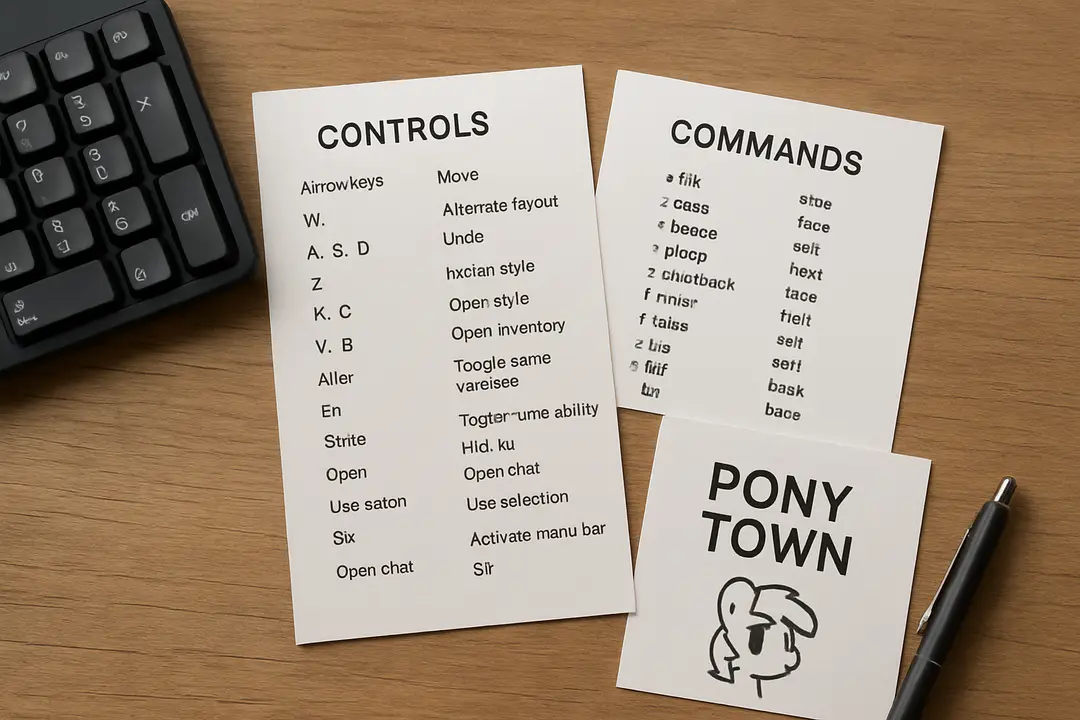
Here’s a quick list of standard controls:
- W/A/S/D or arrow keys: move up, left, down, and right
- Double tap arrow key: sprint
- Mouse click: teleport to that spot
- Spacebar: jump
- Esc: close menus and return to movement mode
To keep your focus on exploration rather than fumbling keys, head into Settings > Controls. From there you can adjust mouse sensitivity or switch between keyboard layouts. If you’re new to the game, our how to play Pony Town overview offers more tips on jumping into the community world smoothly. Practicing these basics for just a few minutes before logging into busy servers can save you from awkward stumbles or running into walls during roleplay scenes.
On mobile devices, tapping the chat icon will pause your movement, so get used to switching back quickly by closing the on-screen keyboard. Alt+T (or cmd+T on Mac) opens chat instantly when you’re on desktop, reducing the risk of missing a group announcement. Getting comfortable with these movement keys stops simple tasks from turning into frustrating delays.
Chat Shortcuts Explained
Conversing in Pony Town goes beyond typing in a box. Chat shortcuts help you organize conversations by channel without leaving the keyboard. By pressing Enter or clicking the chat field, you can start typing. To whisper to a friend, type “/w [username] [message]” and only they will see it. If you want to chat with your current party or map, use “/p” to send a message to everyone nearby. For a quick laugh, “/me” will turn your text into an action, like “/me prances around.”
Remember that Pony Town uses a local chat radius. Messages drop off after a few tiles if players move out of range. That makes shouting unnecessary; instead, you can place yourself in the right spot to reach everyone. Here’s a short list of commands:
- /w username message – private whisper
- /p message – party or proximity chat
- /me action – shows your pony’s action
- /roll – randomly picks a number between 1 and 100
For added flair, try combining commands. “/me dances and /roll high” can turn a simple roll into a performance. That little extra step can break the ice and spark new interactions when you’re meeting strangers. It also cuts back on misfires: no more accidentally sending a personal note to the whole map. Understanding these chat features puts more control in your hooves.
These shortcuts keep you in the flow without hunting for menu options. You can learn more about overall gameplay in our full Pony Town guide, especially if you want to master roleplay or host events. Overall, practicing these chat tricks can make your messages stand out, help you coordinate with friends, and keep the story moving smoothly.
Customizing Key Bindings
Pony Town lets you map controls to your preferred keys. After all, not everyone feels comfortable with the default WASD layout. To customize, head over to the Settings menu and pick Controls. You’ll see a list of actions, from moving to opening the emote wheel. Click the action you want to change, tap the new key, and it will update immediately.
Follow these steps to personalize your keys:
- Open Settings via the gear icon in the top right.
- Select Controls.
- Click on the action you wish to remap.
- Press your desired key or mouse button.
- Repeat for each control you want to adjust.
If you make a mistake, use the Reset button at the bottom to revert to defaults. It’s a good idea to test each change in a calm map before joining a crowded server. That way, you avoid confusing a sprint with a jump during a big event. And if you want extra advice on joining fun communities or hosting your own, our guide on dive deeper into character creation gives you more context on building maps and gatherings.
Once you’re done, don’t forget to tweak mouse sensitivity too—especially if you like clicking commands quickly. A slightly faster cursor speed can save precious seconds when selecting emotes or spells in roleplay. Small tweaks like these can make a big difference in your daily Pony Town adventures.
Emotes and Actions
Expressing yourself in Pony Town relies heavily on emotes. You can access them by pressing E, which brings up the emote wheel. Each quadrant holds four default emotes, and you can customize these slots with your favorite animations. You’ll find options like dance, sleep, wave, or even dramatic bows. Using emotes can spark conversation and add depth to roleplay scenes.
To use the emote wheel:
- Press E to open the wheel.
- Hover over an emote icon.
- Release E to perform the emote.
For text-based actions, commands like “/sit,” “/dance,” or “/hug [username]” exist as well. These combine a chat effect with an animation, letting you sit beside a friend or give them a virtual hug. To learn more about customizing your look before acting out scenes, check out our deep dive into the Pony Town character creator, where you can save and share your designs.
Experimenting with emotes during quiet moments is a good way to test timing and combination chains. For example, you might wave, roll, and then jump to create a small performance. Emotes can also be handy in mini-games—try coordinating a group dance routine to win a dance-off. Understanding how emotes and commands blend will give your pony a unique voice and make interactions more memorable.
Advanced Chat Commands
Beyond simple whispers and actions, Pony Town offers a set of advanced chat commands. These tools help you automate messages, roleplay dice rolls, and create dynamic text effects. You can even flip a coin or pick between options. Knowing these tricks can give your group events an extra layer of excitement.
Here’s a table summarizing key commands:
| Command | Function |
|---|---|
| /roll | Random number from 1 to 100 |
| /coin | Randomly shows Heads or Tails |
| /flip | Flips text upside down |
| /shrug | Adds ¯\_(ツ)_/¯ after your text |
To use any command, open chat, type the slash (/) followed by the command and press Enter. You can also chain commands in one line, like “/roll highscore /me cheers” to roll and then celebrate automatically. These macros can save time and keep the story moving—vital for busy roleplay sessions.
Some servers even create custom commands through plugins, letting you trigger map-specific events or sound effects. Be sure to check with the map creator for any extras. If you’ve ever wondered how to set up events or mini-games, our post on how to play Pony Town covers hosting tips that pair well with these chat tricks. Mastering advanced commands ensures you’re always ready to roll, flip, or surprise friends with a coin toss.
Troubleshooting Controls
Even the best-laid plans can run into hiccups. If your controls stop responding in Pony Town, the first step is to check browser focus—click on the game area or hit Esc. Sometimes stray browser extensions block keys, so try disabling them or switching to a private window.
Other common fixes include clearing your cache, updating your browser, or trying a different browser altogether. If your mouse feels sluggish, adjust your system’s pointer speed or check for conflicting software like graphic tablet drivers. For keyboard lag, ensure no macro tools are running in the background.
Here are quick tips to fix control issues:
- Refresh the page and rejoin the server
- Press Esc to exit menus and regain focus
- Disable conflicting browser extensions
- Clear cache or use private/incognito mode
- Update your browser to the latest version
If problems persist, consult the official community on Discord or check a community-written guide for advanced troubleshooting. You’ll often find that switching from Chrome to Firefox resolves specific issues. Pair these fixes with regular key binding checks in Settings. That way, you avoid surprises when an important key doesn’t work during an event. Staying proactive about maintenance keeps your pony prancing without pause.
Finally, remember to test bindings in a quiet map before big gatherings. That quick check can save both time and embarrassment when a control fails at a crucial moment. A little prep goes a long way in making your Pony Town sessions smooth and stress free.
Conclusion
Mastering controls and commands in Pony Town transforms your play from casual strolling to immersive storytelling. Basic movement keys get you where you want to go, while chat shortcuts, emotes, and advanced commands help you stand out in the crowd. Customizing your key bindings ensures you always feel comfortable, and knowing how to troubleshoot means you’ll never miss a moment.
As you practice these skills, you’ll notice conversations flow more naturally and your pony’s personality shines through every jump, whisper, and dance. Embrace these tools to lead events, host mini-games, or simply enjoy seamless exploration. You’ll avoid awkward pauses and be ready for any surprise roleplay twist.
So take a few minutes today to revisit your settings, experiment with emotes, and try out new commands. Your next Pony Town session will feel smoother and more fun than ever. Ready to prance with confidence?