How to Make Twitter Account Private: Simple Privacy Steps
Privacy on social media matters more when your posts include personal opinions, photos, or updates you only want certain people to see. Many people run into this question when they want more control without leaving Twitter/X entirely. The choice can feel confusing because your profile still stays visible in some ways even after you limit post access. Knowing what changes before you adjust the setting helps you avoid surprises.
Key Takeaways
- Turn on Protect my Posts in Account Privacy and Safety settings to make your Twitter/X account private.
- Once your account is private, only approved followers can see your tweets, posts, and shared photos.
- Your current followers keep access, while new follow requests need your approval before they can view your content.
Steps to Make Twitter Account Private
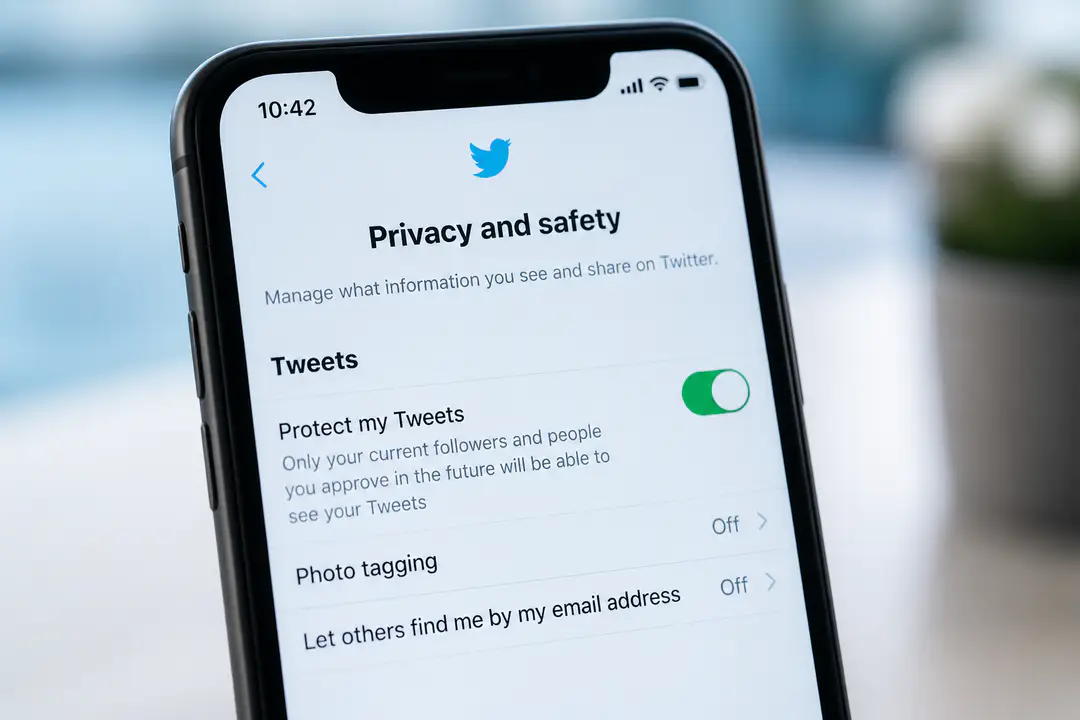
Twitter/X uses a privacy setting called Protect my Posts. Once enabled, your account changes from public to private, which means your posts are limited to followers you approve. The process is similar on web and mobile, but the menu layout looks a little different depending on your device.
Accessing Privacy Settings
- Open Twitter/X and sign in to the account you want to protect.
- On desktop, click More in the left menu, then go to Settings and privacy.
- Select Privacy and safety, then open Audience and tagging or the account privacy area where post protection appears.
- On mobile, tap your profile icon, then tap Settings and privacy.
- From there, open Privacy and safety and look for the section that controls who can see your posts.
This step matters because the private account setting is not on your Twitter/X profile page. Many users look in profile edit options first, but the control sits inside privacy settings instead. If you already review your device security regularly, basic habits like installing software updates also help protect your account beyond social app settings.
Enabling Protect My Posts
- In the privacy menu, find the option labeled Protect my Posts or Protect your posts.
- Toggle the setting on. On some screens, it appears as a checkbox instead of a switch.
- Read the short note shown on screen. It explains that only your followers will be able to see your posts after protection is enabled.
- Confirm the choice if the app asks whether you want to continue.
After this, your account becomes private right away. People who do not follow you can still find your account name and basic profile, but they cannot see your posts and photos unless you approve them as followers. That is the main difference between public and private on Twitter/X.
Confirming Changes
On some versions of Twitter/X, you must tap or click Save changes after turning on the setting. You may also be asked to enter your password to confirm the update. This extra step helps verify that the account owner is making the change.
If the setting does not seem to stick, go back into Privacy and Safety and check whether Protect my Posts is still enabled. If not, repeat the process and make sure you completed the save or password confirmation step before leaving the page.
Understanding Follower Access
Once protecting your posts is active, only approved followers can see your tweets or posts. Your current followers can still see your profile and information, and they can still see your posts because they were already accepted before the account became private.
New followers work differently. When someone tries to follow you, their request stays pending until you approve it. Until that approval happens, they cannot see your posts and photos, even though followers can still see your profile basics like your display name, profile picture, and bio.
If you are careful about account safety, watch for password risks too. A weak or reused login can expose your private content, which is why reports of password theft are a useful reminder to strengthen access with a unique password and two-factor authentication.
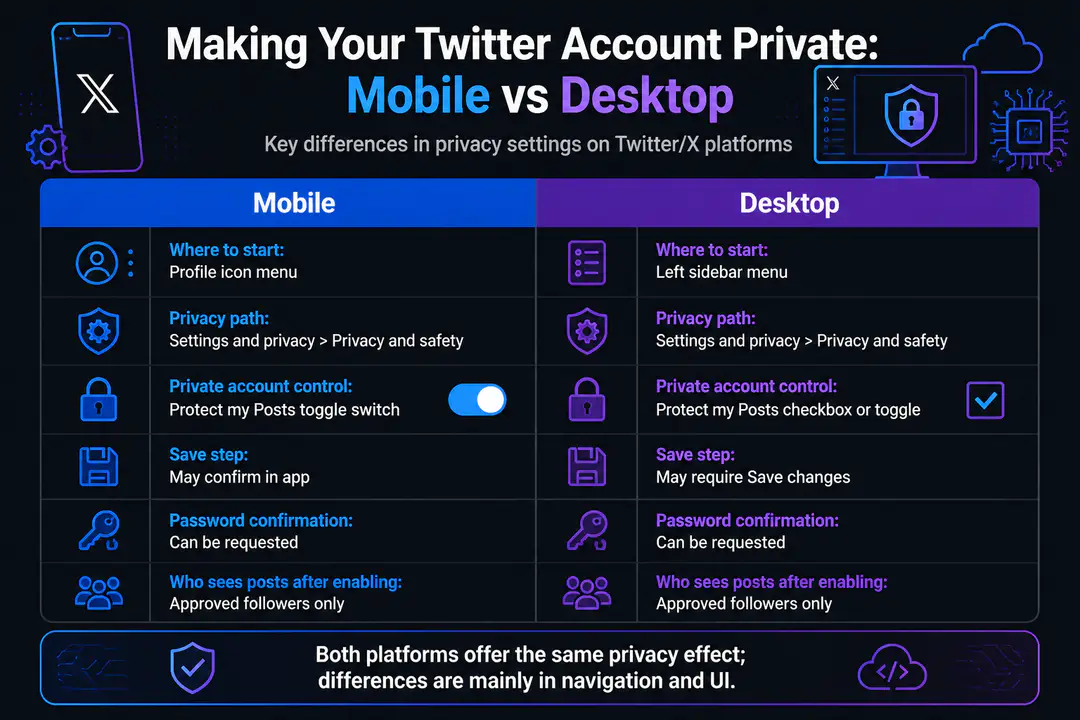
Mobile vs Desktop Differences
- Desktop: The left-side menu usually makes Settings and privacy easier to find.
- Mobile: The settings path is shorter once you open the side menu from your profile icon.
- Desktop: Save buttons are more visible, especially after changing privacy options.
- Mobile: You are more likely to see a toggle switch instead of a checkbox.
- Both platforms: The feature works the same once enabled, and approved followers see the same protected content.
| Feature | Mobile | Desktop |
|---|---|---|
| Where to start | Profile icon menu | Left sidebar menu |
| Privacy path | Settings and privacy > Privacy and safety | Settings and privacy > Privacy and safety |
| Private account control | Protect my Posts toggle | Protect my Posts checkbox or toggle |
| Save step | May confirm in app | May require Save changes |
| Password confirmation | Can be requested | Can be requested |
| Who sees posts after enabling | Approved followers only | Approved followers only |
| Current followers | Keep access | Keep access |
| New followers | Need approval | Need approval |
Benefits of a Private Twitter Account
A private Twitter/X account gives you more control over who can see your posts, replies, and photos. It is useful if you share personal updates, want a smaller audience, or prefer to review follow requests before letting someone in. This setting does not hide your account completely, but it does limit access to your content.
It also reduces casual viewing from strangers, which can make posting feel more comfortable. If you are improving your general online privacy habits, learning how image visibility works alongside image search techniques can help you think more carefully about what profile and photo details stay public.
Common Privacy Questions
- Can people still find my account? Yes. Your account can still appear in search, and people can still see basic profile information.
- Can non-followers see my posts? No. Once the account is private, only approved followers can see your tweets, posts, and photos.
- Do current followers lose access? No. Current followers remain approved and can still see your content unless you remove or block them.
- Do I need to approve every new follower? Yes. New people must send a follow request, and you choose whether to accept it.
- Can I switch back to public later? Yes. You can return to the same setting and turn off Protect my Posts at any time.
FAQs
Will making my account private hide old tweets?
Yes. Once your account is protected, older posts are also limited to approved followers. They are no longer openly visible to the public.
Can followers share my protected posts?
Your protected posts are intended for approved followers only. The platform limits public sharing of protected content, but followers can still copy text or take screenshots.
Can I approve or remove followers later?
Yes. You can approve new requests, remove followers, or block accounts whenever you want. That gives you continued control after your account becomes private.
Does a private account stop all contact?
No. It controls who can see your posts, not whether people know your account exists. Your profile basics remain visible, and other account settings control messages, tags, and discoverability.
Conclusion
If you want more control over who can see your content, turning on Protect my Posts is the simplest way to make your account private. Follow the steps carefully on mobile or desktop, confirm the change if asked, and remember that current followers keep access while new followers need approval. Making your account private enhances your control over who sees your content and reinforces stronger digital privacy.