Tech Hacks Pblinuxgaming: Easy Linux Performance Wins
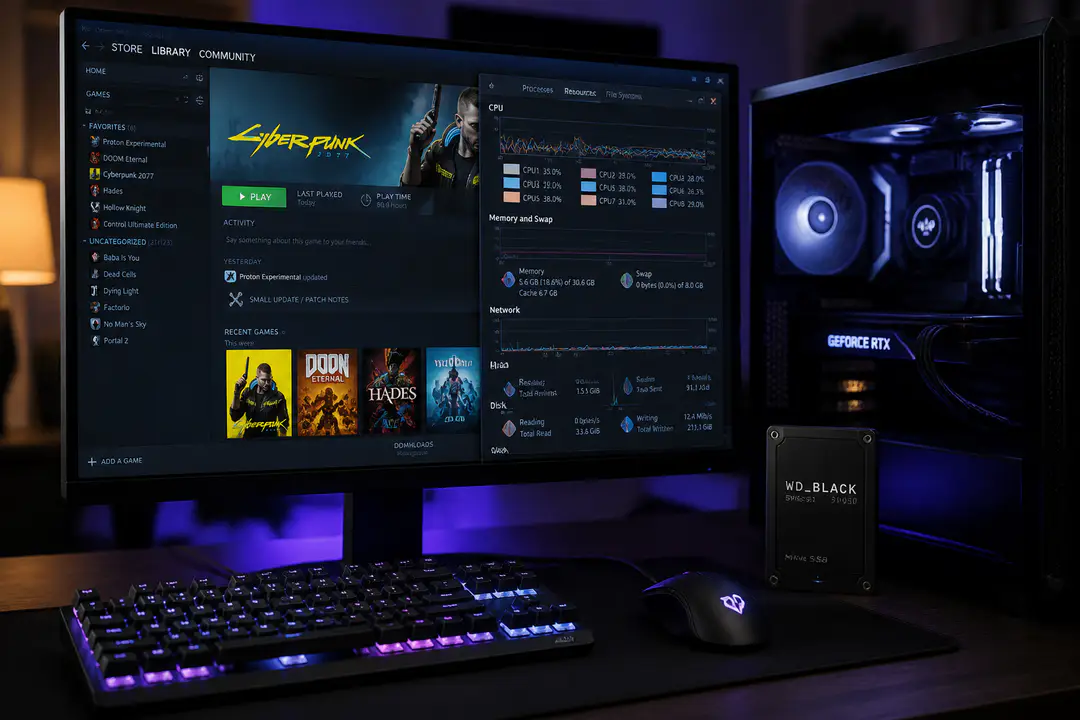
Linux gaming keeps getting better, but getting a smooth experience can still feel confusing when performance issues come from several different places. Many players run into stutter, long loads, or inconsistent frame pacing without knowing whether the cause is drivers, compatibility tools, or storage. That is why tech hacks pblinuxgaming searches keep growing among people who want practical ways to tune their systems. The challenge is not finding random tweaks, but knowing which changes matter most first.
Key Takeaways
- Keep graphics drivers updated because NVIDIA cards usually perform best on current proprietary drivers, while AMD cards benefit from newer Mesa drivers.
- Use Steam Proton and enable Steam Play so Windows games run through Valve’s compatibility layer with better Linux game compatibility.
- Turn on GameMode to give games higher system priority and improve responsiveness during play.
- Install games on an SSD, then monitor CPU, GPU, and RAM usage to spot the real cause of lag, stutter, or poor frame pacing.
Top Linux Gaming Performance Hacks
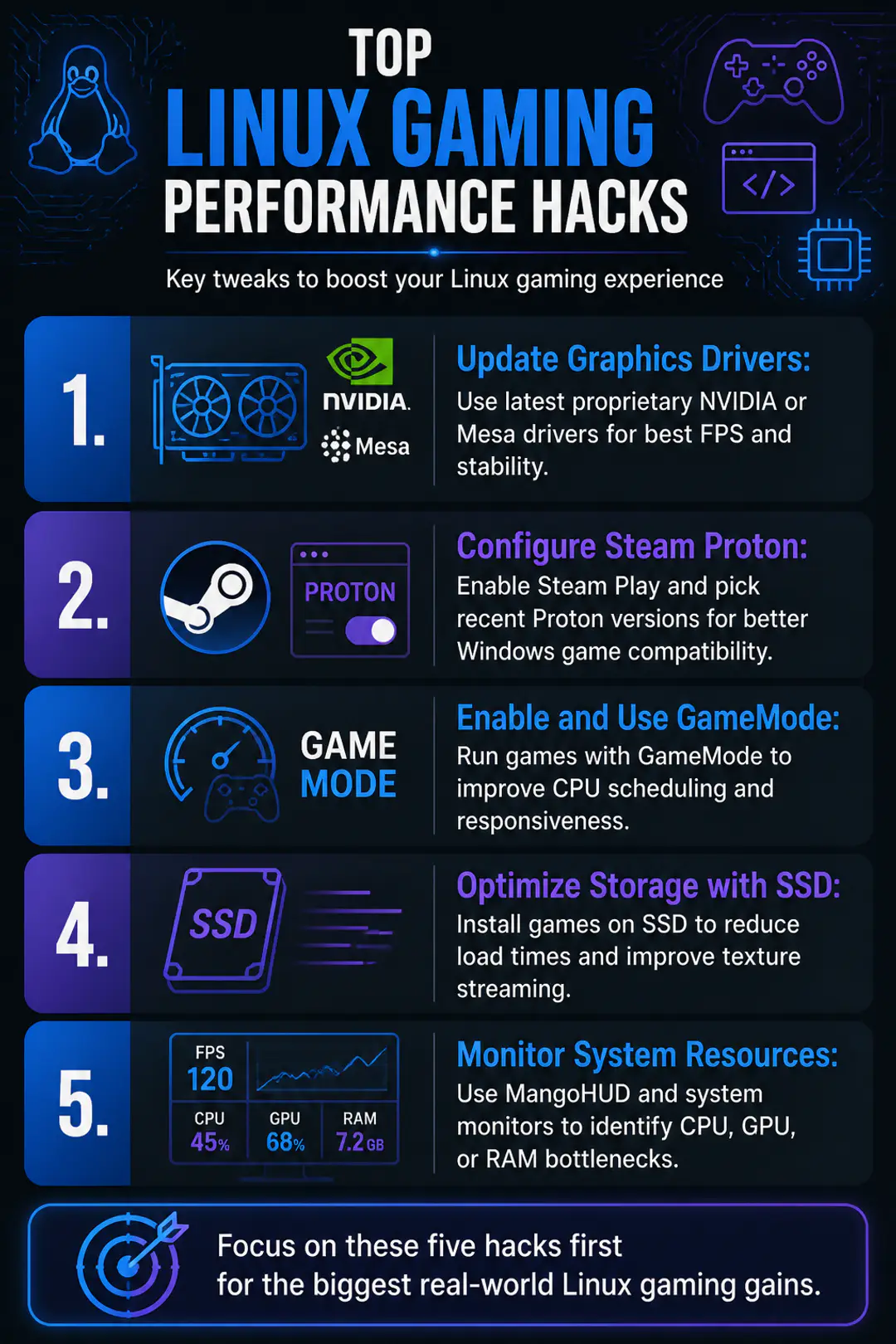
These are the changes that produce the biggest real-world gains for most Linux players. They focus on hardware utilization, software configuration, and system efficiency rather than risky tweaks. Start with drivers and Proton first, then move to performance tools and storage.
Update Graphics Drivers
Driver quality has a direct effect on FPS, shader compilation behavior, Vulkan support, and frame stability. NVIDIA users usually get the best results from the latest proprietary drivers, especially for newer games that rely on current Vulkan features. AMD users benefit most from updated Mesa drivers, since Mesa handles much of the open-source graphics stack on Linux.
On Ubuntu, Pop!_OS, and Linux Mint, update the whole system first so the kernel, Mesa packages, and supporting libraries stay in sync. If you want a safer routine for software updates, stick to your distribution’s package manager and reboot after major graphics changes. Mixing old kernels with fresh drivers often creates the very stutter people blame on Linux gaming.
A quick rule helps here: if you use NVIDIA, confirm the proprietary driver is active; if you use AMD, confirm Mesa is current enough for your GPU generation. You do not need to chase beta builds unless a specific game needs a fix. Stable current releases usually give the best balance of performance and reliability.
Configure Steam Proton
- Open Steam and go to Settings.
- Select Compatibility.
- Enable Steam Play for supported titles.
- Enable Steam Play for all other titles if you want Windows-only games to appear installable.
- Choose a recent Proton version from the dropdown menu. If one game acts up, test another Proton release instead of changing everything else.
- Install the game and launch it once before making extra tweaks.
- If a title has launch problems, try simple launch options only after confirming the default Proton profile does not work.
Steam Proton is Valve’s compatibility layer for running many Windows games on Linux. In practice, it translates Windows game calls into Linux-friendly ones, often with little setup. Some games still lose performance compared with Windows, and heavily competitive titles can show large drops, so it helps to treat Proton as a compatibility tool first and a tuning target second.
For non-Steam games, Wine still matters because it gives you another path for older or launcher-based titles. Keeping both Proton and Wine updated is useful, especially if you switch between Steam libraries and standalone installers. Security matters too, so avoid random downloads and pay attention to reports about linux users malicious cemu build incidents before testing unofficial packages.
Enable and Use GameMode
- GameMode is a lightweight tool that adjusts your system for gaming while a title is running.
- It can change CPU governor behavior, reduce background interference, and help the game get system resources more consistently.
- The result is better responsiveness, especially on systems that aggressively save power when idle.
Install GameMode from your distribution repository, then launch supported games through Steam with the command prefix gamemoderun. Some launchers and native Linux games recognize it automatically, but adding the prefix removes guesswork. If MangoHUD says GameMode is off even though you launched it correctly, treat that as a reporting issue first and verify behavior by checking CPU frequency and system load during play.
Optimize Storage with SSD
Moving games from a hard drive to an SSD does more than shorten loading screens. Open-world titles, games with heavy texture streaming, and large patch-based installs all feel more responsive when storage latency drops. Faster storage also helps shader cache access and reduces the hitching that shows up when a game pulls data mid-session.
If you have limited SSD space, prioritize games with large maps, frequent zone transitions, or long startup times. Keep at least some free space available because a nearly full SSD slows down writes and cache behavior. If your distro and game library share one drive, clearing unused startup programs and old downloads protects system efficiency as much as raw storage speed does.
Monitor System Resources
- Use MangoHUD to display FPS, frame time, CPU load, GPU load, VRAM use, and RAM use in-game.
- Use system monitors such as htop or a graphical task manager to spot background tasks eating CPU and RAM.
- Watch GPU usage: low GPU use with high CPU use often points to a CPU bottleneck or background process problem.
- Track frame time, not just average FPS. Sudden spikes reveal stutter more clearly than a single FPS number.
- Check storage activity during gameplay if hitching appears when entering new areas or loading assets.
Resource monitoring keeps you from guessing. If your GPU sits at 60% while one CPU thread is pinned, the fix is different from a VRAM limit or RAM shortage. A lot of so-called optimization methods fail because they target the wrong bottleneck.
| Tool or Option | Main Use | Best For | Notes |
|---|---|---|---|
| NVIDIA proprietary drivers | GPU performance and Vulkan support | Modern NVIDIA cards | Often the fastest choice for Linux gaming |
| Mesa drivers | Open-source graphics stack | AMD GPUs | Regular updates improve compatibility and stability |
| Steam Proton | Run Windows games on Linux | Steam libraries | Enable in Steam settings under Compatibility |
| Wine | Run non-Steam Windows software | Launchers and older games | Useful outside the Steam ecosystem |
| GameMode | Temporary performance tuning | CPU scheduling and responsiveness | Launch with gamemoderun when needed |
| MangoHUD | On-screen performance monitoring | Finding bottlenecks | Best for tracking FPS and frame time |
Common Linux Gaming Challenges
Most Linux gaming problems fall into three buckets: compatibility, stutter, and inconsistent performance. A game may launch through Proton but still need a different Proton version, a newer driver, or a Vulkan-related fix. Stutter often comes from shader compilation, background apps, or slow storage rather than low average FPS. Competitive games can add another problem with kernel-level anti-cheat or launcher restrictions, which is why some titles still run better or only run on Windows.
Essential Linux Gaming Tools
- MangoHUD for on-screen FPS, frame time, CPU and GPU stats
- Steam Proton for Windows game compatibility inside Steam
- Wine for non-Steam Windows games and launchers
- GameMode for temporary performance-focused system behavior
- htop or a graphical system monitor for background process checks
- CoreCtrl or similar GPU tuning utilities on supported hardware
Security tools matter too if you test unofficial mods, launchers, or helper apps. That is especially relevant when multiplayer updates change system access rules, as seen in pieces about a vanguard update tightening PC security. On Linux, the safest optimization is still the boring one: install trusted packages from known repositories.
Basic Linux Gaming Setup Tips
- Choose a gaming-friendly distribution such as Ubuntu, Pop!_OS, or Linux Mint if you want easier driver management.
- Update the full system before troubleshooting a single game.
- Disable unnecessary startup programs so more CPU and RAM stay available.
- Use Ethernet instead of Wi-Fi for lower latency in online games.
- Keep one Proton version stable for most games, then test alternatives only per title.
- Store your most-played games on SSD space first.
- Check in-game graphics presets before editing advanced config files.
FAQs
Is Linux good for gaming now?
Yes. Linux gaming is far better than it was a few years ago, mainly because of Proton, Vulkan, and better driver support. The biggest limits now are anti-cheat support and game-specific compatibility.
Should I use Proton for every game?
No. Native Linux versions are worth trying first if they are actively maintained, but many Windows games run better or more reliably through Proton. Test the default option before changing versions.
Do SSDs increase FPS?
SSDs usually do not raise average FPS directly. They improve load times, asset streaming, and overall responsiveness, which helps reduce hitching and long pauses.
What is the easiest first tweak?
Update your drivers and enable Steam Play in Steam’s Compatibility settings. Those two changes fix more Linux gaming problems than any advanced tweak.
Conclusion
Start with the highest-impact fixes: current drivers, properly configured Proton, GameMode, and SSD storage for the games you play most. Then use monitoring tools to confirm what is actually limiting performance instead of guessing. With a little testing, these tech hacks pblinuxgaming methods can significantly improve your Linux gaming experience, so experiment with the options that fit your setup and keep optimizing until your system feels right.