OLED Burn-In vs. Image Retention: Is Your Screen Permanently Ruined or Just ‘Ghosting’?
You just spent a small fortune on the latest flagship phone. The display is gorgeous—deep blacks, vibrant colors, buttery smooth refresh rates. But then, one evening, you notice something unsettling. You are watching a movie with a dark scene, and you can faintly see the ghost of your keyboard or the TikTok home button etched into the glass. Your heart sinks. Did you just ruin your thousand-dollar device?
Before you spiral into a panic, take a breath. In my years handling phone repair Montreal, I have had countless customers rush into the shop convinced their screen is dead, only to find out it’s just a temporary glitch. However, there is a very real, darker side to OLED technology that every user needs to respect.
There is a massive difference between “Image Retention” (a temporary annoyance) and “Burn-In” (permanent damage). One goes away with a cup of coffee and some patience; the other is a scar that stays forever. Today, we are going to tear down the tech, explain why your organic pixels get tired, and help you figure out if your screen is just “ghosting” you or if it’s actually toast.
Section 1: The ‘Organic’ Flaw in Your Screen
To understand why this happens, you have to understand what “OLED” actually stands for: Organic Light Emitting Diode.
The key word there is Organic.
Unlike the old LCD screens on the iPhone 11 or your laptop, which use a backlight to shine through pixels, OLED pixels create their own light. They are essentially millions of tiny, microscopic lightbulbs made of organic compound layers.
The Candle Analogy
Think of every pixel on your screen like a tiny candle.
- Red Sub-pixel: A red candle.
- Green Sub-pixel: A green candle.
- Blue Sub-pixel: A blue candle.
When you display a white image, all three candles burn bright. When you display black, they turn off completely (which is why OLED blacks are so perfect).
But here is the catch: candles burn down. Over time, the chemical compounds in those pixels degrade. If you burn the “blue candle” at maximum brightness for 10 hours straight every day, it is going to get shorter (dimmer) faster than the red or green ones. This uneven wear is the root cause of what we call burn-in.
Section 2: The Two Suspects – Retention vs. Burn-In
This is the part that confuses everyone. The symptoms look almost identical, but the causes—and the cures—are totally different.
1. Image Retention (The Ghost)
This is the “good” news scenario. Image retention is temporary.
- What it is: Sometimes, when a pixel is driven hard for a while (like displaying a bright white map interface), the electrical charge builds up in the driving transistors, or the liquid crystals (in hybrid displays) get “stuck” in a certain orientation.
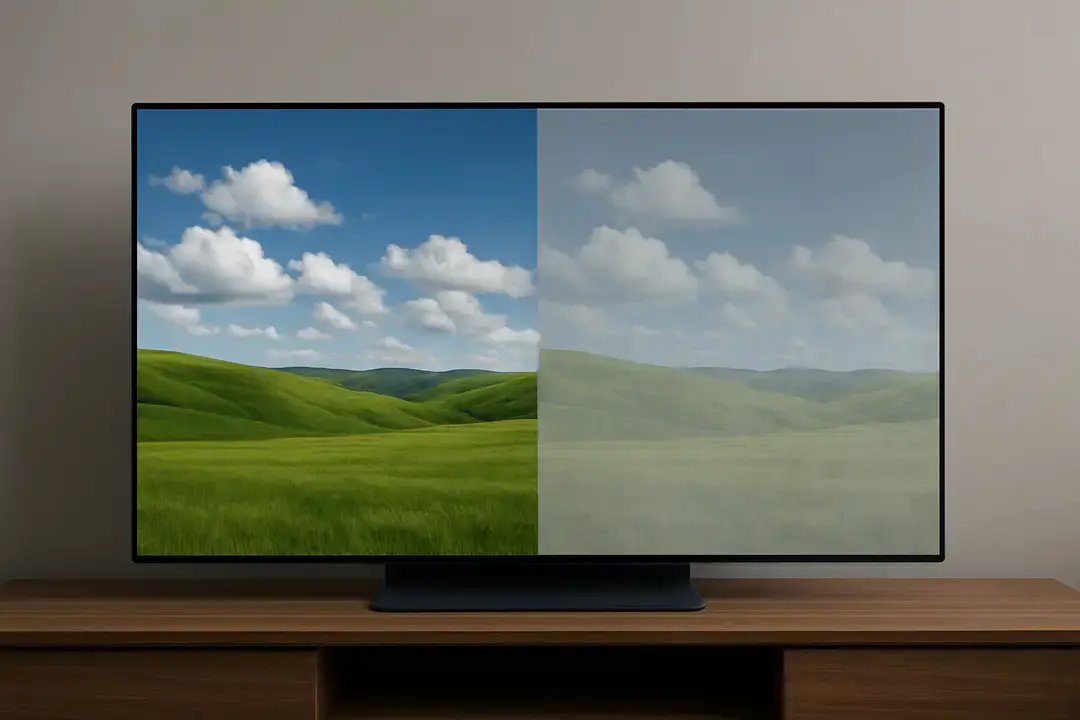
- The Symptom: You switch apps, and you can still see a faint outline of the previous app. It looks like a shadow or a fog.
- The Prognosis: It goes away. Give the screen a rest, turn it off for 15 minutes, or play a colorful video, and the “stuck” charge dissipates. The ghost fades.
2. Burn-In (The Scar)
This is the bad news.
- What it is: This is actual physical degradation of the pixel. Remember the candle analogy? If the blue sub-pixels in the area where your navigation bar sits have “burned down” by 20% more than the rest of the screen, they can no longer shine as bright as their neighbors.
- The Symptom: You see a permanent discoloration. It usually looks brownish or pinkish because the blue light is too weak to balance the colors. It is always there, regardless of what you are watching.
- The Prognosis: It’s permanent. You cannot “software update” a chemical that has degraded. The pixel is physically worn out.
Section 3: The “Burn-In” Stress Test
How do you know which one you have? You don’t need a degree in engineering; you just need a grey background.
The Grey Test:
- Go to YouTube and search for “5% Grey Test.”
- Go to a dark room and turn your screen brightness to about 20-30%.
- Play the video full screen.
What to look for:
- Uniform Grey: Your screen is healthy.
- Faint, fuzzy shadows that move or fade after a few minutes: That is Image Retention. You are safe.
- Sharp, distinct outlines (like a battery icon, a keyboard, or the TikTok ‘Plus’ button) that do not move and look darker than the surrounding grey: That is Burn-In.
If you see sharp, dark shadows of icons that have been there for weeks, no app is going to fix that. That area of the screen has simply aged faster than the rest.
Section 4: The Usual Suspects (What Kills OLEDs?)
Why do some people go 4 years without burn-in, while others get it in 6 months? It comes down to usage habits. OLEDs hate three things: Static Images, High Brightness, and Heat.
1. The TikTok/Instagram Effect
Social media is a screen killer. Think about the TikTok interface. The “Home,” “Discover,” and “+” buttons are white (high brightness) and they sit in the exact same spot for hours a day. Your screen is burning those specific pixels at 100% intensity while the pixels next to them are displaying changing videos. This creates uneven wear.
2. The Uber/Maps Driver Issue
If you drive for a living and keep Waze or Google Maps on for 8 hours a day, you are the prime candidate for burn-in. The static map elements (speedometer, destination bar) will etch themselves into the panel in record time because they are often white on a bright sunny day (max brightness).
3. The “Vivid” Mode Trap
Most phones come out of the box in “Vivid” or “Dynamic” display mode. This pumps up the voltage to the pixels to make colors pop. It looks great in the store, but it drives the organic materials harder, accelerating the aging process.
Section 5: Myths vs. Reality (Can You Fix It?)
The internet is full of snake oil “fixes” for burn-in. Let’s debunk them so you don’t waste your time—or destroy your phone.
- Myth: Put it in the freezer.
- Reality: Do not do this. Freezing a battery and a display can cause condensation inside the phone, tripping the water damage sensors and corroding the motherboard. It will not “un-burn” a pixel.
- Myth: “Burn-in Fixer” Apps.
- Reality: These apps flash rapid colors (Red, Green, Blue, White) at high brightness. They can help with Image Retention by “unstucking” the charge. However, for true Burn-In, they can’t restore the dead pixel. Sometimes, they work by “burning down” the rest of the screen to match the worn-out area, making the burn-in less noticeable by degrading the whole screen equally. It’s a scorched-earth tactic.
- Myth: It’s covered by warranty.
- Reality: Rarely. Manufacturers like Apple and Samsung usually classify burn-in as “normal wear and tear” unless it happens within the first few weeks. If you walk in with a year-old phone that has the keyboard burned in, they will likely deny the claim.
Section 6: How to Prevent It (The Survival Guide)
You don’t have to baby your phone, but a few settings changes can double your screen’s lifespan.
1. Auto-Brightness is Your Friend The number one cause of burn-in is max brightness. Let the sensor do its job. Only use 100% brightness when you are actually in direct sunlight.
2. Dark Mode Everything Remember, in OLED, black = off. If you use Dark Mode, the background pixels are literally switched off. They aren’t aging. They aren’t generating heat. You are saving battery and saving your screen simultaneously.
3. Shorten Screen Timeout Don’t let your phone sit on the home screen for 5 minutes while you cook dinner. Set your screen timeout to 30 seconds or 1 minute.
4. Rotate Your Wallpaper If you have a bright, high-contrast wallpaper, change it every few months. This prevents the “home screen icons” from wearing out the pixels in one specific arrangement.
Section 7: The “Nuclear” Option – Screen Replacement
Let’s say you did the tests. You have the sharp, permanent outlines. The keyboard is permanently etched in pink across the bottom of your display, and it’s driving you crazy.
At this point, you have a hardware failure. The organic material is spent. The only way to get a perfect picture back is to replace the panel.
This is where quality matters. Cheap, third-party screens (often called “Soft OLED” or generic LCD replacements) will have terrible color accuracy and will burn in even faster. If you love your device, you need a high-quality (OEM grade) OLED panel.
If you are seeing those permanent scars and want your crisp display back, we can help. We specialize in Iphone repair Montreal, and we use high-grade panels that match the original factory calibration, ensuring your whites are white and your blacks are pitch dark.
Conclusion
OLED technology is beautiful, but it is mortal. It is a biological clock ticking down from the moment you turn it on. While “Image Retention” is just a momentary ghost that visits and leaves, “Burn-In” is the price we pay for those perfect, infinite contrast ratios.
The good news? Modern OLED panels are much more resilient than the ones from 5 years ago. Software tricks like “Pixel Shift” (where the image moves slightly every few minutes) happen without you even noticing. Unless you are extremely careless with static images at max brightness, your screen should last the life of the phone.
But if the damage is done, don’t squint through the ghosts. Get it fixed, and get back to enjoying your tech the way it was meant to be seen.
FAQs
Q1: Does Dark Mode actually prevent burn-in?
A1: Yes, absolutely. Since OLED pixels turn off completely to display true black, Dark Mode rests the pixels. If 60% of your screen is black, 60% of your screen isn’t aging. It significantly extends the lifespan of the display.
Q2: Are Samsung phones more prone to burn-in than iPhones?
A2: Not necessarily. Samsung actually manufactures the OLED panels for Apple’s iPhones. The difference lies in the software calibration. Both are susceptible if abused, but Apple’s software tends to be slightly more aggressive about dimming static elements to protect the panel.
Q3: Can a screen protector cause burn-in?
A3: No. A screen protector sits on top of the glass. It has no effect on the organic pixels underneath or the heat generation. It protects against scratches, not chemical aging.
Need a Diagnostic? If you are unsure if that shadow on your screen is permanent or just a glitch, bring it by. Our technicians at our location can run a full pixel diagnostic test. We’ll let you know if it’s time for a new screen or if you just need to adjust your settings.
Further Reading