Grok Twitter: Usage and Access Instructions
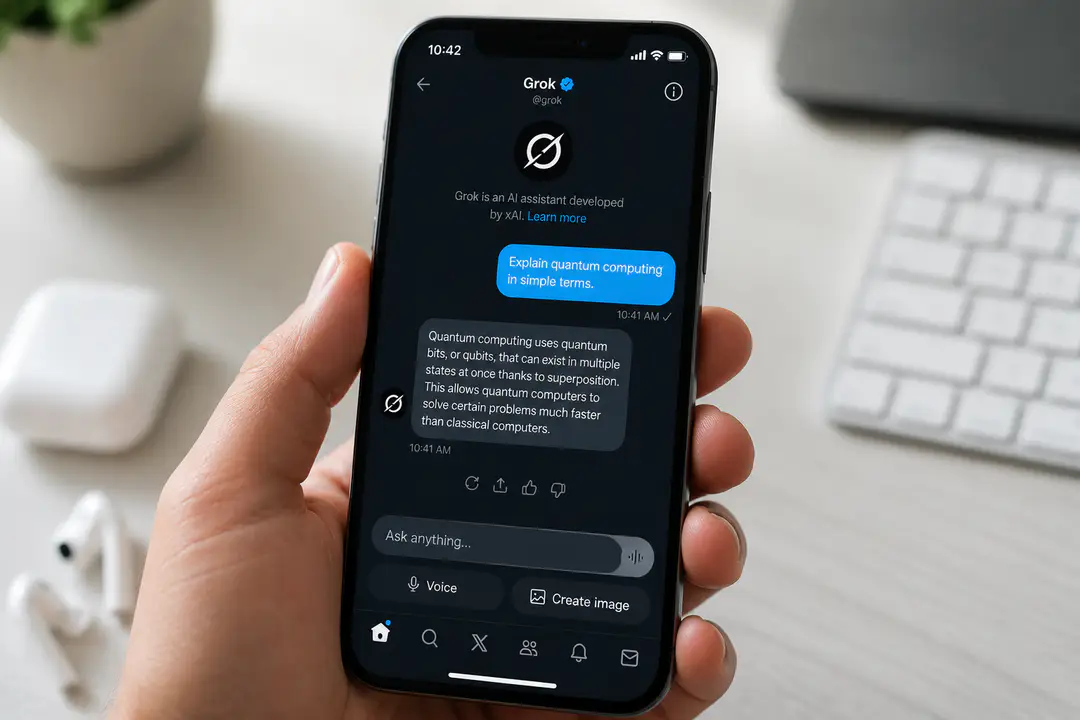
Grok’s tools appear across different parts of X, which can make the starting point unclear for new users. Some people look for an official account, while others expect chat, voice, or image features to appear right after login. That overlap between account access, feature access, and developer access is why many users run into the same setup questions. Grok’s availability can also vary by interface and account access, which makes troubleshooting important from the start.
Key Takeaways
- Grok is xAI’s AI assistant built for chat, reasoning, and image generation inside the X environment.
- To access Grok, log into X and use the official Grok presence or the built-in chatbot tools available in your account interface.
- You can use chat, voice, and image prompts by typing or speaking requests directly in supported X screens.
- Troubleshooting usually starts with checking your login status, feature availability, account settings, and any API key configuration for developer use.
Using Grok on Twitter/X
Finding the Official Grok Account
Start by searching X for Grok and look for the official account tied to xAI branding. The safest method is to confirm the account name, profile details, and recent posts match Grok announcements and product updates rather than fan accounts or repost feeds. If the account is official, it will present Grok as part of xAI’s frontier AI models and will post feature news, examples, and platform-specific instructions.
Follow the official account so you can quickly open its profile, replies, and linked feature pages. That matters because some users first meet Grok through posts before they use the built-in chatbot panel. If you plan to create images with prompts, it helps to review how visual prompts work in practice; a quick refresher on image search techniques can also sharpen the way you describe subjects, angles, and styles.
Logging In and Configuring Settings
- Open X on the web or in the mobile app and sign in with your account credentials.
- Check that your account is fully active. If X asks for email, phone, or security confirmation, finish that step first.
- Look for Grok in the side menu, app navigation, search tools, or any AI/chat icon shown in your version of X.
- Open Settings and verify that permissions for microphone access are enabled if you want to use voice input.
- Review privacy and content settings so Grok can process your prompts and return text or images correctly.
- If you are using developer tools rather than the standard X interface, confirm that your xAI API key is present and stored in the correct environment variable, usually XAI_API_KEY.
If Grok does not appear after login, refresh the app, update it, and sign out and back in once. Feature rollout can differ between web and mobile, so test both if one view seems incomplete. Users who work across AI tools may notice similar feature gaps after platform changes, which is why keeping up with software updates is a useful habit.
Chatting with Grok on X
- Open the Grok interface from the X menu or chatbot panel.
- Type a clear prompt such as: “Summarize today’s discussion thread in three bullet points.”
- For reasoning tasks, ask step-based questions like: “Compare these two arguments and explain which one is better supported.”
- To draft posts, try: “Write a short reply to this post in a professional tone.”
- To summarize research, paste text or describe the topic: “Summarize research on frontier AI models in plain English.”
- If Grok can interact with a post contextually in your interface, ask it to explain a reply chain, rewrite a post, or suggest a response.
Prompt quality matters more than prompt length. A strong prompt includes the task, the format, and any limit, such as “Give me five points” or “Keep it under 100 words.” If the first answer is too broad, refine it with a follow-up like “Use simpler language” or “Focus only on the legal issue.”
Grok is designed for reasoning, so it works best when the request has a clear objective. For example, “Explain the difference between evidence and opinion in this thread” usually produces a stronger result than “What do you think of this?” If you want polished wording for a post or reply, ask for tone directly: neutral, formal, concise, skeptical, or friendly.
Using Voice and Image Generation
Grok also supports voice and image generation in supported versions of X. For voice, tap the microphone icon, speak naturally, and wait for the transcript before sending; this gives you a chance to correct a name, date, or command. For images, use a direct prompt such as “Create an image of a neon-lit city street in rainy weather, cinematic style,” then refine with details about color, camera angle, lighting, or mood.
Image prompts improve when they specify subject, style, and constraints. Instead of “make a dog picture,” write “Generate a realistic golden retriever sitting in a park at sunrise, shallow depth of field.” If your result feels vague, the same discipline used in image search applies here too: precise descriptors lead to better visual output.
Troubleshooting Common Issues
- Login problems: Reset your password, confirm email or phone verification, and make sure your session has not expired.
- Grok not visible: Update the app, reload the web page, and check whether the feature is enabled for your account interface.
- Chatbot not responding: Retry with a shorter prompt, close and reopen the panel, and test your connection.
- Voice input fails: Enable microphone permission in your device settings and browser settings.
- Image generation errors: Simplify the prompt, remove conflicting instructions, and retry after a refresh.
- API key errors: Confirm that the key is active, correctly copied, and assigned to the expected variable name.
- No current information: Remember that Grok needs search or retrieval tools enabled for real-time events; otherwise it answers from its trained knowledge.
Grok API and Developer Access
Developers can access Grok outside the standard X chat interface through the xAI API. Grok 4.3 is the general model for most text tasks, while dedicated APIs exist for audio, image, and video use cases. A minimal Python example looks like this: from xai_sdk import Client, then create the client with your API key, start a chat with model grok-4.3, append a user message such as “Explain quantum computing,” and sample the response.
That setup is useful if you want to build your own chatbot, summarize research automatically, or connect Grok to another workflow such as a Word plugin or internal content tool. If your app depends on live information, enable search or retrieval tools because the base model does not know events that happened after its training data. Keep the API key private and never paste it into public posts or shared screenshots.
Grok Features Overview
| Feature | What it does | How you use it on X |
|---|---|---|
| Chat | Answers questions and drafts replies | Type prompts in the Grok panel or supported chat areas |
| Reasoning | Breaks down arguments, compares ideas, explains logic | Ask step-by-step questions with a clear goal |
| Voice | Accepts spoken input for prompts | Use the microphone button and review the transcript |
| Image generation | Creates images from text descriptions | Enter a visual prompt with style and subject details |
| Post assistance | Helps write posts, replies, and summaries | Ask for a draft in a specified tone or length |
| Developer API | Lets apps call Grok models directly | Use an API key and select the appropriate model |
These features are related but not identical. A user may have access to basic chat before voice or image generation appears in the interface. That difference explains why one person can draft posts immediately while another still needs to check settings, app version, or developer configuration.
Tips for Effective Grok Use
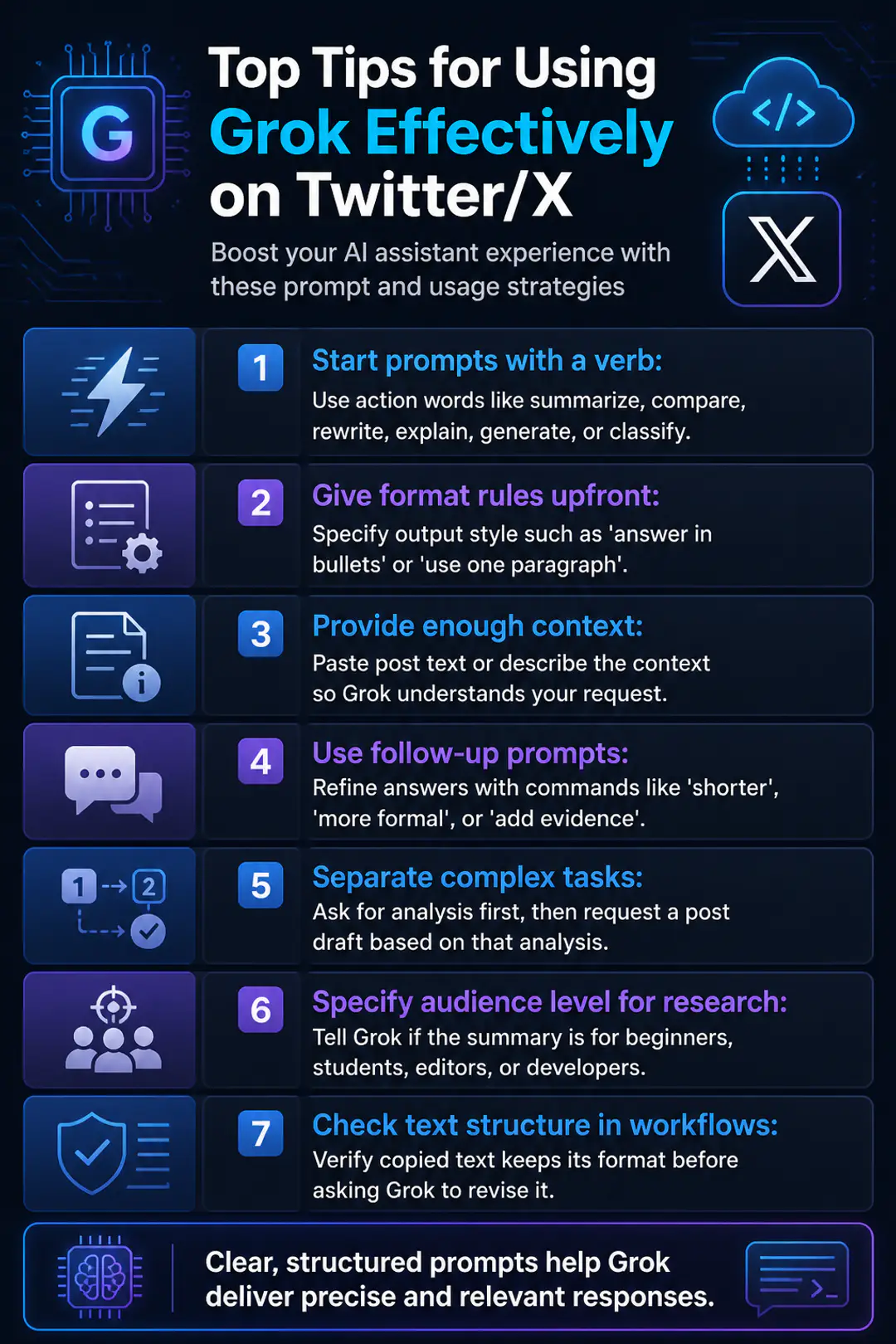
- Start prompts with a verb: summarize, compare, rewrite, explain, generate, or classify.
- Give format rules up front, such as “answer in bullets” or “use one paragraph.”
- For replies on X, paste the post text or describe the context so the chatbot has enough detail.
- Use follow-up prompts instead of starting over. “Shorter,” “more formal,” and “add evidence” are efficient refinements.
- Separate tasks. Ask for analysis first, then ask for a post draft based on that analysis.
- For research summaries, tell Grok the audience level: beginner, student, editor, or developer.
- When using a Word plugin or another writing workflow, verify that copied text keeps its structure before you ask Grok to revise it.
FAQs
How do I know I found the real Grok account?
Check that the account is presented as the official Grok presence associated with xAI branding, current product posts, and authentic profile details. Avoid relying on repost accounts or screenshots alone.
Can I use Grok without the API?
Yes. Most users interact with Grok directly inside X through the chatbot interface, account tools, or the official Grok presence. The API is mainly for developers building their own integrations.
Why does Grok miss current news?
Base model answers come from trained knowledge. For real-time events, search or retrieval tools must be enabled so Grok can pull in current information.
Can Grok help write posts on X?
Yes. You can ask it to draft a post, shorten a reply, change tone, or summarize a thread before posting. Always review the final text before publishing it from your account.
Conclusion
Once you know where Grok appears inside X, the tool becomes much easier to use well. Start with simple prompts, refine them by task, and keep troubleshooting focused on login, permissions, visibility, and API setup. Grok will keep evolving on social platforms, so explore its features on Twitter/X with confidence and be ready to troubleshoot as new tools roll out.