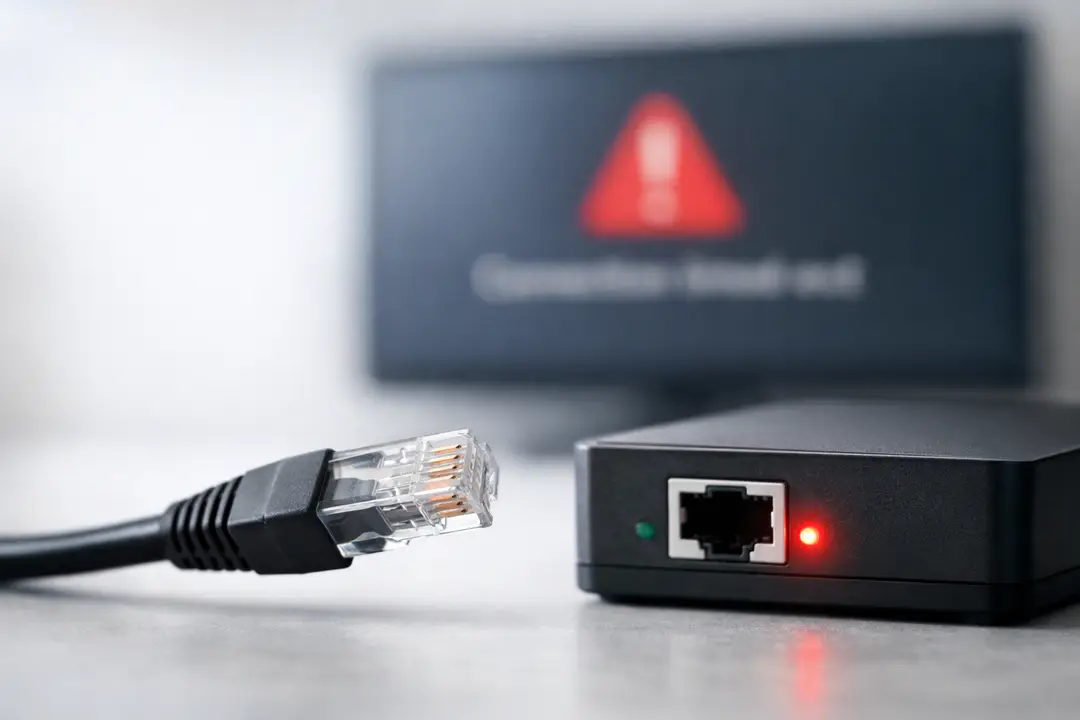
Connection timed out getsockopt error explained
You’re just trying to reach a website, an API, or a database, and then it happens: connection timed out getsockopt. It feels vague, and it often shows up when you’re already under pressure to “just make it work.” The tricky part is that the real problem is not the error text itself, but the hidden journey your connection request takes through DNS, routing, and firewalls. So why does a simple request sometimes stall long enough to time out, even when everything looks fine on the surface?
The good news is that this error is usually solvable once you treat it like a path problem instead of an app problem. “Getsockopt” is just the library asking the operating system what happened to a socket connection attempt. If the connection can’t be completed in time, the OS reports a timeout, and your tool prints this message. When you learn where timeouts are born (name lookup, network path, filtering, or server-side load), you can test faster, change fewer things, and avoid random “try again later” surprises.
Who sees this error
This topic is for developers, system admins, DevOps engineers, and even power users who work with command-line tools like curl, git, ssh, Docker, or package managers. It also matters to anyone running apps that depend on outside services, like payment gateways, login providers, or data pipelines.
It matters because timeouts waste time in two ways. First, they slow your app or deployment since it waits for a long timeout before failing. Second, they create uncertainty. People start guessing: “Is the server down? Is it my code? Is the internet unstable?” Getting clear on what the error really means helps you pick the right test quickly and reduce downtime.
In most environments, you’re also dealing with layers: home router, office network, VPN, cloud security rules, container networks, and sometimes proxies. A single weak link in that chain can create a timeout that looks the same everywhere. Your job is to narrow it down to the layer that actually broke.
What getsockopt really means
Let’s translate the message into plain language. When an app tries to connect to a remote host, it creates a socket and starts a TCP handshake (or a UDP send). The operating system keeps track of that socket state. The app then calls getsockopt() (or a library does it) to ask, “Did the connection succeed? If not, why?”
So the “getsockopt” part is not the failure. It’s just where the failure is reported. The actual failure is “connection timed out,” which usually means: a TCP SYN was sent, but no SYN-ACK came back within the allowed time. That tends to point to a network path issue, filtering, or a server that never responded.
It’s different from “connection refused.” Refused means the host replied quickly with a reset (RST), usually because nothing is listening on that port or a firewall actively rejected it. Timeout means you didn’t get a useful response at all.
Practical tip: if you can reproduce the error with curl -v or nc -vz host port, you’ve already proven it’s not just your app. That’s a strong first step before you start changing code.
Common real-world causes
Timeouts come from a small set of usual suspects. The key is to stop thinking “my app is broken” and start thinking “my packets aren’t making a round trip.” Here are the causes that show up most often in real systems.
- Wrong IP or route: DNS points to an old address, or your network route can’t reach that subnet.
- Firewall or security group drop: Cloud security rules, corporate firewalls, or host firewalls silently drop packets.
- Port not reachable across networks: The service listens internally, but you’re connecting from outside (private IP, wrong load balancer, missing NAT).
- VPN/proxy mismatch: Some destinations only work on VPN, or the proxy blocks that port.
- Server overload: The server is up, but too busy to accept new connections or respond within time.
- Bad MTU or fragmentation issues: Less common, but can cause stalls on certain paths, especially with VPN tunnels.
Practical tip: keep a small “known good” test host in your environment (like a simple health endpoint). If your app can reach that host but not the target, you’ve narrowed the scope to routing, ACLs, or the target service.
If you’re working across many systems, it helps to keep your troubleshooting steps consistent and documented. A simple, repeatable checklist is the same kind of idea behind keeping systems tidy and searchable, like how teams think about making operational data easier to self-serve when problems hit.
Quick checks that save time
When you see connection timed out getsockopt, you want fast, low-risk tests. These checks don’t require code changes, and they often reveal the issue in minutes.
- Confirm DNS: Run
nslookupordigand verify the IP matches what you expect. - Ping carefully: Ping is not always allowed, but if it works, it proves basic reachability. If it fails, don’t assume the host is down.
- Test the port: Use
nc -vz host 443ortelnet host 443. A timeout here strongly suggests filtering or routing. - Trace the path: Try
traceroute(ortracerton Windows). Even partial results can show where it stops. - Try from another network: Hotspot your phone, or test from a different VM/region. If it works elsewhere, your network is the issue.
- Check local firewall: On Linux, review
ufworiptables; on Windows, review Defender Firewall rules.
Practical tip: write down the exact target tuple: hostname, resolved IP, port, protocol, and source network. Most confusion comes from mixing these up during testing.
Also, don’t ignore local environment changes. VPN clients, endpoint security tools, and even browser extensions can alter network behavior. If you suspect a local tool is involved, do a clean test in a container or a fresh VM to reduce variables.
Firewalls and cloud rules
In cloud and enterprise networks, timeouts often mean “dropped on purpose.” Many security setups prefer dropping packets instead of rejecting them. Dropping is quieter, but it creates timeouts that are harder to read.
Start by checking rules in the order traffic hits them:
- Client-side firewall: outbound blocks are common on locked-down machines.
- Network firewall: office, data center, or VPN firewall policies.
- Cloud security groups / NACLs: AWS SGs, Azure NSGs, GCP firewall rules.
- Host firewall: iptables/nftables rules on the server.
- App-level allowlists: some services only accept specific source IP ranges.
Practical tip: if you control the server, temporarily enable a simple listener on the port (like python -m http.server for HTTP testing) and check whether SYN packets arrive. If they don’t arrive, it’s upstream. If they arrive but you still time out, the return path might be blocked.
Another practical move is to compare “working” and “failing” environments. If staging connects but production times out, the difference is often one security group rule, one subnet route, or one missing NAT gateway. Create a habit of reviewing these differences like you would compare service models in IT, similar to the way teams weigh break-fix versus managed support when deciding who owns ongoing reliability.
Proxies, VPNs, and DNS traps
Sometimes the server is fine and the network is fine, but your connection is being redirected or filtered in a way that is not obvious. Proxies and VPNs can change routes, rewrite DNS, and block ports that would normally work.
Here are a few patterns that lead to timeouts:
Proxy set without you noticing. Many tools respect environment variables like HTTP_PROXY, HTTPS_PROXY, and NO_PROXY. If the proxy cannot reach the destination, you get a timeout that looks like the destination failed. Check your environment and try a test with proxy disabled.
Split DNS or split tunneling. On a VPN, internal domains may only resolve correctly through the VPN DNS servers. Off VPN, they resolve to nothing or to an old IP. On split tunnel VPNs, DNS goes one way and traffic goes another. That mismatch can time out.
IPv6 surprises. Some clients prefer IPv6. If your network has broken IPv6 routing, the client may try IPv6 first and time out before falling back to IPv4. Testing with curl -4 can quickly confirm this.
Practical tip: log the resolved addresses and the chosen family (IPv4 vs IPv6). In many stacks, that single detail explains why “it works on my laptop” but fails on a server.
Also, if you’re troubleshooting from restricted networks, be cautious about quick “fixes” like random proxy services. Choose providers and configurations carefully; guidance like choosing a reliable proxy setup can help you avoid adding a new point of failure while trying to solve one.
Fixes you can apply
Once you’ve narrowed down the cause, fixes become more direct. The main goal is to restore a clean path and to set timeouts so failures are quick and visible, not slow and confusing.
Here are practical fixes that work in many environments:
- Correct DNS records: remove stale A/AAAA records and reduce TTL during migration windows.
- Open the right ports: allow outbound from the client and inbound to the service (and don’t forget return traffic).
- Fix routing: ensure the right route tables, NAT, and gateway rules are in place, especially across subnets.
- Set sane connect timeouts: for clients, prefer a short connect timeout (like 2–5 seconds) and a longer read timeout if needed.
- Add retries with backoff: one retry can help with transient issues, but endless retries hide problems and create load.
- Monitor the handshake: track failed connects, not just HTTP errors. A service can be “up” but unreachable.
Practical tip: if you own both client and server, instrument both sides. On the client, log when connect starts and ends. On the server, log new connections and queue depth. If the client times out but the server never sees a connection, it’s the network path. If the server sees it but the client still times out, it could be response path, TLS issues, or overload.
In teams, the fastest long-term fix is often a shared playbook: what to check, who owns which layer, and what “normal” latency looks like. Timeouts are less scary when everyone knows the same next steps.
Conclusion
The connection timed out getsockopt error sounds technical, but the core idea is simple: your connection tried to complete, and it didn’t get a response in time. The message points you toward the path between your device and the destination, not toward a specific bug in your app.
If you remember just one thing, make it this: separate the problem into layers. Confirm DNS, test the port, trace the route, then check firewalls, VPNs, and cloud rules. Use quick tools like curl -v and nc to prove where the failure lives before you change code or rebuild systems.
When you treat timeouts as a troubleshooting story with a beginning (name resolution), middle (network path), and end (server accept and reply), you stop guessing. You start testing. And once you can do that calmly, you’ll fix these errors faster, prevent repeat outages, and keep your systems predictable even when the network is not.