
How to Run an Uncensored Qwen 3.8 27B Locally or in the Cloud
Qwen3.8-27B-Uncensored is a community-modified 27-billion-parameter model that runs locally from a GGUF file or through hosted inference. The right setup depends on your available VRAM or unified memory, whether you need image and video input, and whether prompts must remain on your own machine. For most local systems, a 4-bit file is the sensible starting point.
Steps to Run Qwen3.8-27B Uncensored
-
Check your hardware. Allow at least 16 GB of available memory for the smallest listed download, 16 GB of VRAM for IQ4_XS, or 24 GB of VRAM for Q4_K_M with useful context headroom.
-
Choose a quantization. Match the GGUF file size and expected context length to your GPU VRAM or Apple Silicon unified memory.
-
Download the model. On Hugging Face, choose Qwen3.8-27B-Uncensored-Q4_K_M.gguf, Qwen3.8-27B-Uncensored-IQ4_XS.gguf, or another available quantization.
-
Choose a runtime. Install LM Studio for a graphical Mac setup, Ollama for a simple local command interface, or llama.cpp for command-line and server control.
-
Load the GGUF file. Keep the model’s chat template, or enable Jinja handling when the runtime requires it.
-
Set the context length. Start at 4,096 or 32,768 tokens rather than requesting the native 262,144-token window immediately.
-
Enable GPU offload. Use all practical layers, such as 99 layers in llama.cpp, and add the vision projector for image or video input.
-
Test the model. Try ordinary text, a long prompt, structured output and an image, if supported, before using it for larger workloads.
Running a large local model requires the runtime, quantization, context settings and hardware offload to work together. Follow the setup in order so you can reproduce a working configuration and identify the setting that caused a failure instead of changing several variables at once. This consistency is part of why tutorials matter in technical workflows.
Quantization sizes and hardware requirements
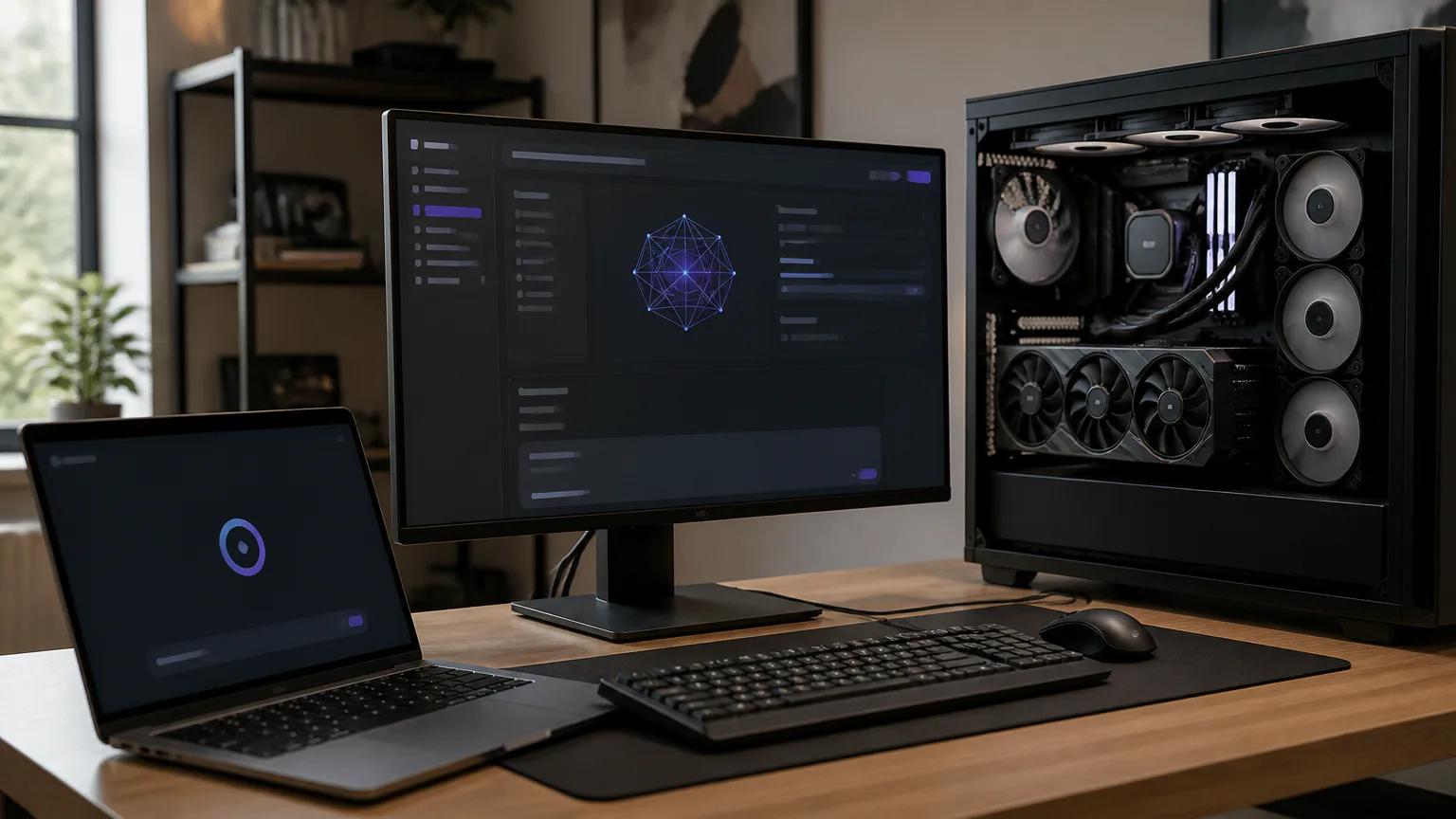
Qwen3.8-27B is a dense model, so all 27 billion parameters participate in inference. Full BF16 execution needs approximately 54-56 GB, while FP8 needs approximately 27-28 GB. Quantized GGUF files use much less memory, but the file size is only part of the requirement. The runtime also needs room for the KV cache and operating-system overhead.
|
Quantization |
File size |
Memory target |
Best use |
|---|---|---|---|
|
BF16 |
54–56 GB |
56 GB or more |
Maximum model precision |
|
FP8 |
27–28 GB |
28 GB or more |
High-memory GPU systems |
|
Q8_0 |
30 GB |
32 GB or more |
High-quality quantized inference |
|
Q6_K |
23 GB |
24 GB or more |
Quality-focused local use |
|
Q5_K_M |
16.8–20 GB |
24 GB |
Quality and memory balance |
|
Q4_K_M |
16.8–18 GB |
24 GB |
General local inference |
|
IQ4_XS |
15.3–16 GB |
16 GB |
Tighter VRAM limits |
|
Q3_K_M |
13.5–14 GB |
16 GB |
More context headroom |
|
IQ2_XXS |
9.8 GB |
12 GB |
Smallest local footprint |
Qwen3.8-27B-Uncensored-Q4_K_M.gguf is the default choice for a 24 GB GPU. Use Qwen3.8-27B-Uncensored-IQ4_XS.gguf when 16 GB is the hard limit. Q3_K_M leaves more room for a longer context, although output quality is lower. A 32,768-token context can use approximately 2 GB for the KV cache, and larger contexts need more memory.
Understand the uncensored model
The uncensored release is a community modification of the official Qwen3.8-27B checkpoint. Its lower refusal rate comes from abliteration, a weight-editing method that removes or weakens internal refusal directions. It uses the same general model architecture and is not a separate pretraining run.
The underlying model is a dense vision-language model that accepts text, image and video input. It also supports tool use and has a native context window of 262,144 tokens. Its architecture contains 64 layers: 16 full-attention layers and 48 Gated DeltaNet linear-attention layers. The base model uses the Apache 2.0 license. Redistribution of a community-modified checkpoint depends on the published license and included notices for that checkpoint.
Lower refusal behavior does not guarantee factual accuracy, unrestricted capability or safe output. One refusal-reduction evaluation changed 98 refusals out of 100 to 12. Harmful-prompt refusal rates for abliterated builds range from 0% to 6%. These figures describe measured behavior and are not guarantees for every prompt or quantization.
Run it in LM Studio
LM Studio is the simplest graphical option for supported Apple Silicon Macs. It requires macOS 14.0 or newer, an Apple Silicon M1, M2, M3 or M4 Mac, and at least 16 GB of memory. Intel Macs are not supported for this setup.
-
Install LM Studio on an Apple Silicon Mac running macOS 14.0 or newer.
-
Search for the model and locate the community Qwen3.8-27B-Uncensored GGUF release.
-
Download a suitable quantization. On a 16 GB Mac, start with IQ4_XS or Q3_K_M.
-
Load the model in the chat workspace after the download finishes.
-
Set the context length to 4,096 or 8,192 tokens. Increase it only if generation remains stable.
-
Send a test prompt and confirm that LM Studio loaded the community model rather than an official refusal-tuned checkpoint.
The smallest listed LM Studio download is 16.10 GB, so leave more storage space than the file itself requires. A 16 GB Mac can load a small quantization, but macOS and the KV cache can create memory pressure, reduce speed or cause swapping. On systems with more unified memory, Q4_K_M gives better output quality than the smaller options.
Serve it with llama.cpp
llama.cpp gives you direct control over GPU offload, context size, prompt templates and an OpenAI-compatible local server. Use a current build because older versions may not handle newer model metadata, chat templates or multimodal components correctly.
-
Model file: the path to the downloaded GGUF file
-
Context: start with 32768 tokens
-
GPU offload: 99 layers for a full-offload test
-
Chat formatting: –jinja
-
Default server address: localhost:8080
-
Build or install llama.cpp with the GPU backend for your NVIDIA, AMD or Apple Silicon system.
-
Place the GGUF file in a local model directory and copy its full path.
-
Launch the server with a command such as ./llama-server -m /models/Qwen3.8-27B-Uncensored-Q4_K_M.gguf -c 32768 -ngl 99 –jinja.
-
Open the local endpoint at http://localhost:8080, or connect an OpenAI-compatible client to that address.
-
Lower the context with -c 8192 or -c 4096 if the process runs out of memory.
-
Add the projector with –mmproj /models/mmproj-file.gguf for image or video input.
The –jinja flag preserves the model’s prompt formatting and thinking controls. If responses contain malformed roles, ignored instructions or unexpected refusal text, check the selected template and confirm that the server loaded the intended GGUF file.
Import it into Ollama
Ollama imports a downloaded GGUF file through a Modelfile or runs a tagged community package. Use Ollama 0.17.1 or newer with this model. The recommended default tag is q4_K_M.
-
Install Ollama version 0.17.1 or newer.
-
Create a Modelfile containing FROM /absolute/path/to/Qwen3.8-27B-Uncensored-Q4_K_M.gguf.
-
Set a context parameter such as PARAMETER num_ctx 32768 beneath the model path.
-
Create the model with ollama create qwen38-uncensored -f Modelfile.
-
Start it with ollama run qwen38-uncensored.
-
Test the chat template with a short prompt before increasing the context or connecting external applications.
Ollama’s context guidance is 4K on systems with less than 24 GiB of available memory, 32K up to 48 GiB, and 256K only with hardware above 48 GiB. The full native context therefore needs substantially more memory than the quantized model file alone. When the package is available in your Ollama environment, you can also run orcarouter/Qwen3.8-27B-Uncensored.
Enable vision and tool calling
Text generation works with the GGUF model alone. Multimodal inference also needs a compatible vision projector. With llama.cpp, pass the projector through –mmproj and keep it matched to the model release. Without the projector, the runtime may load normally but reject image input.
-
Vision: load the matching mmproj file and attach an image through a multimodal client.
-
Thinking mode: use the model’s supported thinking control for longer reasoning and disable it for shorter responses.
-
Tool calling: provide a strict tool schema and validate returned arguments before executing an action.
-
Structured output: use a JSON schema or grammar where supported, then parse and validate the result in your application.
Tool support does not execute tools automatically or make generated calls trustworthy. Your application still needs permission checks, argument validation, file and network controls, and approval for any real-world action.
Fix common loading problems
Most loading failures come from memory pressure, an incompatible runtime or a mismatched chat template. Start with the smallest reproducible configuration: use a short context, disable optional multimodal components and confirm that plain text generation works before adding features.
-
Out-of-memory errors: choose IQ4_XS or Q3_K_M, lower the context or reduce GPU offload.
-
System swapping: close other applications and leave room for the KV cache. Swapping can make generation unusably slow.
-
Malformed responses: update llama.cpp or Ollama and enable the model’s Jinja chat template.
-
Ignored thinking controls: confirm that the runtime kept the model template instead of replacing it with a generic one.
-
Failed image prompts: load the matching –mmproj file and use a multimodal-capable client.
-
Slow generation: check that GPU layers were actually offloaded and that the model is not running entirely on the CPU.
-
Context crashes: start at 4K or 8K, then increase the setting gradually instead of selecting 262K immediately.
A quantization can fit its advertised file size and still fail once the context cache, runtime buffers and operating system are included. Leave extra room on laptops and unified-memory Macs.
Benchmark Speed Before Scaling Up
-
Keep the comparison fixed: record the runtime, hardware, model file, quantization and context length for each test.
-
Measure several context points: output speed falls as the context fills. A Q5_K_M run measured 74.88 tokens per second near 1K context, 70.15 at 16K, 56.58 at 63K and 42.71 at 90K.
-
Test Apple Silicon separately: LM Studio reached 17-20 tokens per second on an M5 Pro with 64 GB. An M4 Pro with 48 GB reached 24 tokens per second initially and then settled near 18.
-
Repeat the test after changing quantization: compare speed and memory use at the same context length before moving to a larger file or longer context.
-
Scale up after the baseline is stable: increase context or quantization quality only when the measured run remains responsive and does not start swapping.
Run a repeatable llama.cpp baseline before changing the model size or context: ./llama-bench -m /models/Qwen3.8-27B-Uncensored-Q4_K_M.gguf -p 512 -n 128 -c 4096 -ngl 99. Repeat the test at each chosen context length and quantization with the same prompt and generation settings.
-
Prompt processing speed: record the prompt-processing tokens per second shown by the benchmark.
-
Generation speed: record generated tokens per second and time to the first token.
-
Peak memory: record maximum system RAM and VRAM or unified-memory use.
-
Context behavior: test 4,096, 8,192 and any larger target context, recording latency at each point.
-
Swapping: note disk activity, rising latency or a swap alert. If swapping begins, reduce the context or quantization before repeating the test.
Change one meaningful variable at a time, quantization, context length, batch size, or GPU offloading, and record the result. That way, a faster configuration won’t hide higher memory use or worse output quality, and you can focus on changes that are likely to matter in production. This is similar to test impact analysis, where limited testing is concentrated on the areas a change affects most.
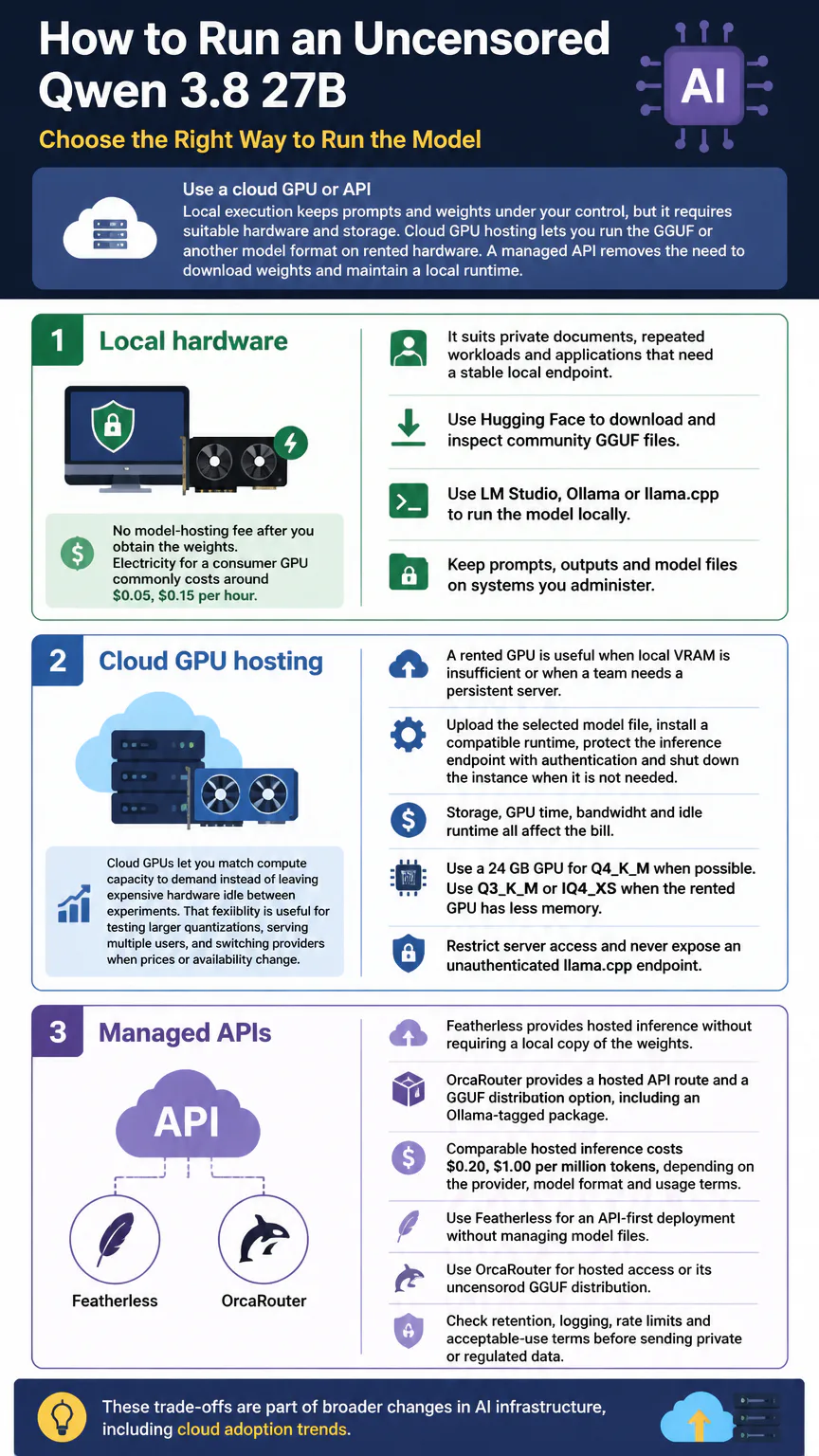
Use a cloud GPU or API
Local execution keeps prompts and weights under your control, but it requires suitable hardware and storage. Cloud GPU hosting lets you run the GGUF or another model format on rented hardware. A managed API removes the need to download weights and maintain a local runtime.
Local hardware
Local hardware has no model-hosting fee after you obtain the weights, although electricity for a consumer GPU commonly costs around $0.05, $0.15 per hour. It suits private documents, repeated workloads and applications that need a stable local endpoint.
-
Use Hugging Face to download and inspect community GGUF files.
-
Use LM Studio, Ollama or llama.cpp to run the model locally.
-
Keep prompts, outputs and model files on systems you administer.
Cloud GPU hosting
A rented GPU is useful when local VRAM is insufficient or when a team needs a persistent server. Upload the selected model file, install a compatible runtime, protect the inference endpoint with authentication and shut down the instance when it is not needed. Storage, GPU time, bandwidth and idle runtime all affect the bill.
-
Use a 24 GB GPU for Q4_K_M when possible.
-
Use Q3_K_M or IQ4_XS when the rented GPU has less memory.
-
Restrict server access and never expose an unauthenticated llama.cpp endpoint.
Cloud GPUs let you match compute capacity to demand instead of leaving expensive hardware idle between experiments. That flexibility is useful for testing larger quantizations, serving multiple users, and switching providers when prices or availability change. These trade-offs are part of broader changes in AI infrastructure, including cloud adoption trends.
Managed APIs
Featherless provides hosted inference without requiring a local copy of the weights. OrcaRouter provides a hosted API route and a GGUF distribution option, including an Ollama-tagged package. Comparable hosted inference costs $0.20, $1.00 per million tokens, depending on the provider, model format and usage terms.
-
Use Featherless for an API-first deployment without managing model files.
-
Use OrcaRouter for hosted access or its uncensored GGUF distribution.
-
Check retention, logging, rate limits and acceptable-use terms before sending private or regulated data.
Review safety and licensing
The Apache 2.0 base license permits broad use, modification and redistribution, subject to its conditions, including the preservation of required notices and disclaimers. A community-modified checkpoint may add its own terms, so check that checkpoint’s model card and package metadata before redistributing it.
Removing refusal behavior puts more moderation responsibility on the operator. Add input filtering, output review, rate limits, audit logs and permission boundaries before connecting the model to external tools, private files, code execution or automated decisions.
A low refusal rate does not show that an answer is accurate or lawful. Keep sensitive prompts on trusted infrastructure, protect API keys and stop generated tool calls from performing irreversible actions without explicit application-level approval.

Conclusion
Start with Q4_K_M on a 24 GB GPU or IQ4_XS on a 16 GB system. Set the initial context to 32K or less, then validate text generation before enabling vision or tools. LM Studio suits a supported Mac desktop, Ollama keeps local use simple, llama.cpp gives you server control, and Featherless or OrcaRouter remove the need for suitable local hardware.