X Advanced Search: Find Posts with Precision
Finding one specific post on X can feel harder than it should be, especially when standard results mix together different types of content. People researching old posts, tracking event conversations, or checking what a specific account said often run into this problem. The challenge usually comes from sorting by the right combination of terms, accounts, dates, and result views before the post you want gets buried.
Key Takeaways
- On desktop, open Advanced Search from the search results page by entering any query first, then clicking the Advanced Search link under Search filters on the upper right.
- Use filters like keywords, hashtags, users, dates, locations, and minimum likes to narrow X search results to the exact posts you want.
- On mobile, the advanced search menu is often missing, so the most reliable method is to type search operators directly into the search bar.
How to Use X Advanced Search
Accessing Advanced Search on Desktop
- Go to X and sign in if needed.
- Click the search bar at the top of the page.
- Enter any word, phrase, hashtag, or username, then press Enter.
- Wait for the search results page to open.
- Look at the upper right area for Search filters.
- Click Advanced search underneath that filter area.
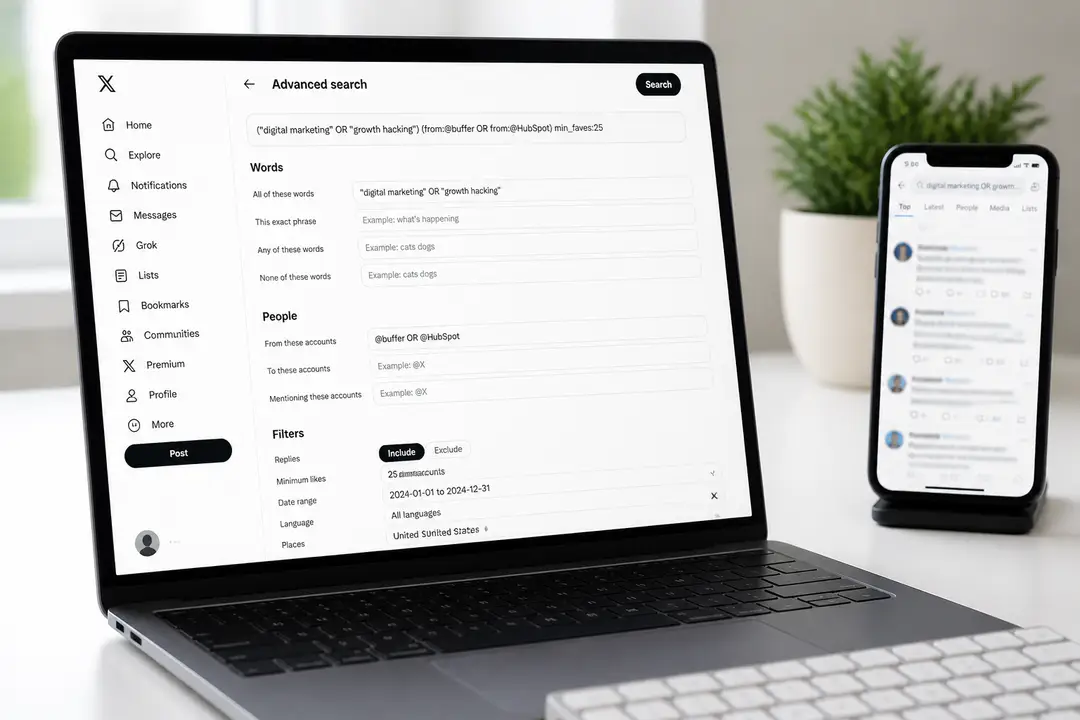
- Fill in the fields you want, then run the search.
Why the results page matters
The advanced search panel does not appear on the home feed by itself. You have to begin with a normal search first, then open the filter form from the results page. If you skip that first search, you will keep looking for a menu that is not visible yet.
A common mistake is using the browser’s site search or a saved old URL and assuming the feature has been removed. It still depends on opening the search results page first. If you work from a desktop browser, this is the easiest way to access the full search form.
Using Keyword and Hashtag Filters
The keyword fields let you search with more control than a single search box. You can enter words that must all appear, an exact phrase, any of several words, or words you want excluded. That helps when broad topics return too many results.
For example, if you want posts about a product launch but not support complaints, you can search for an exact phrase and remove unwanted terms.
- “product launch” -support
- #marketing campaign
- AI OR automation
Hashtags work well when you want event posts, campaign tracking, or topic-specific discussions.
If your results still look messy, switch to the Latest tab for more chronological order. Search behavior also overlaps with broader web habits, and some image search techniques use the same idea of starting broad, then narrowing with better terms instead of adding everything at once.
Start with one phrase or hashtag, review the result quality, and then add exclusions or another keyword if needed. That usually produces cleaner results than building a very long query from the start.
Filtering by User and Account
User filters are essential when you know who posted something or who was mentioned in the conversation. X supports account-based search through operators like from:, to:, and @mentions. These help you separate posts published by an account from replies sent to it or conversations that only mention it.
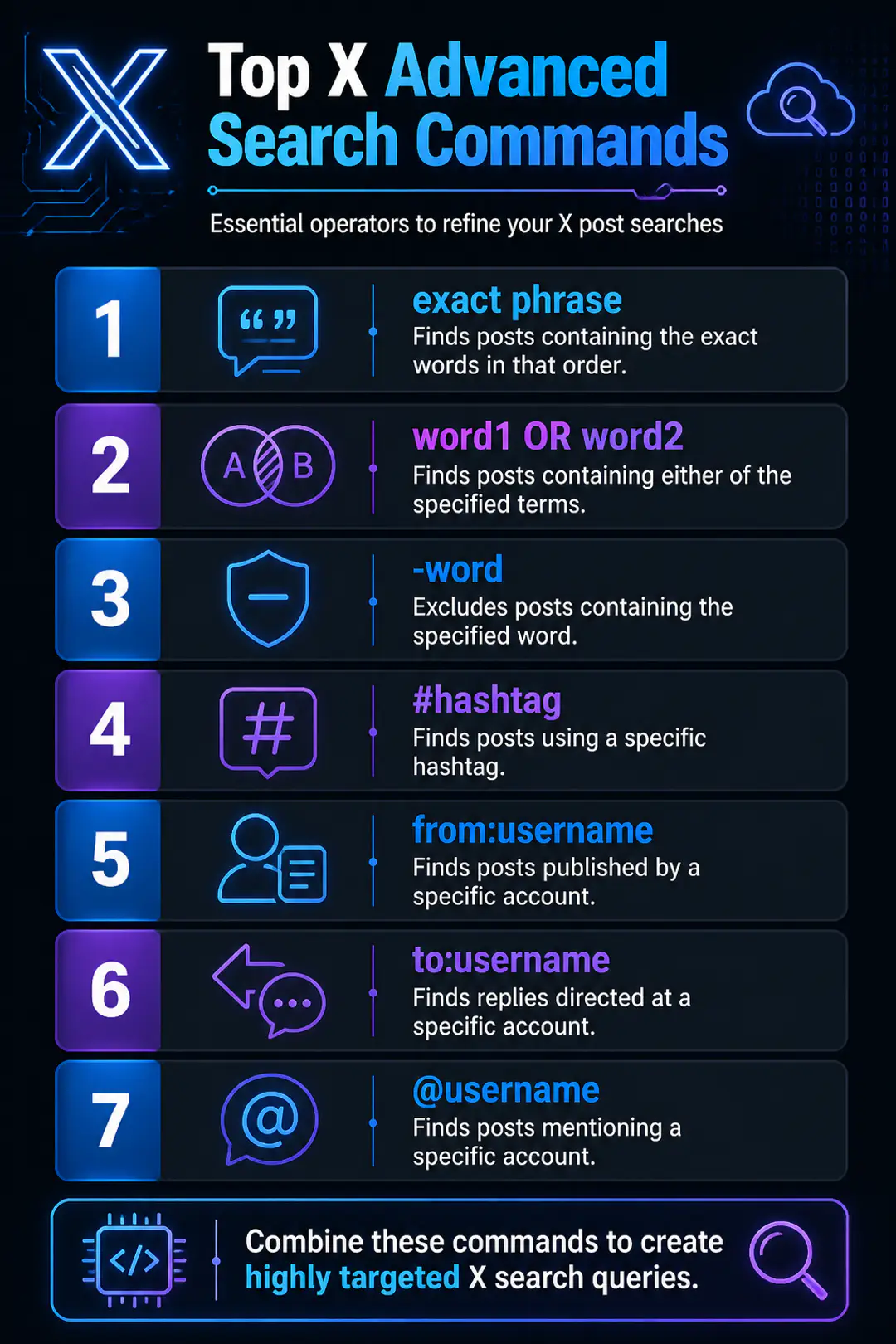
Use from:username to find posts published by a specific account. Use to:username to find replies directed at that account. If you want posts that mention an account anywhere in the text, search @username.
- from:NASA finds posts published by NASA.
- to:NASA finds replies sent to NASA.
- from:NASA mars finds NASA posts about Mars.
- from:username #event since:2025-01-01 until:2025-01-31 combines account, hashtag, and date filters.
This is especially useful for brand monitoring, customer support checks, or researching a creator’s past posts. If you want to compare X search habits with broader discovery tools, a good image search engine also relies on source-based filtering, even though the content type is different.
Applying Date Range Filters
Date filters are one of the most practical parts of advanced search. They help when a post is tied to a launch day, a news event, or a campaign period. Instead of scrolling endlessly, you can limit results to a specific window.
On the desktop form, fill in the From and To date fields. With manual operators, use since:YYYY-MM-DD and until:YYYY-MM-DD. For example, from:OpenAI since:2025-02-01 until:2025-02-15 searches posts from that account only within those dates.
A frequent mistake is treating the until date as inclusive in every situation. If a result appears missing, widen the range by one day and check the Latest tab. This helps when time zones or indexing delays make a result harder to surface.
Additional Filters: Location and Likes
X search can also be narrowed with location and engagement clues. Location filtering is useful for local events, city-based reactions, or region-specific campaigns. Likes filtering helps you find posts that gained traction instead of every low-engagement mention.
For engagement, use operators such as min_faves:50 to show posts with at least 50 likes. A copy-paste example is from:username min_faves:100. This is a fast way to surface an account’s most popular posts without scrolling through its profile.
Location filters can be less consistent because they depend on available location signals. If you are trying to narrow a local topic, combine a place name with a date or hashtag rather than relying on location alone. Search syntax works best when several clues reinforce each other, much like remote desktop testing depends on both the environment and the method you use.
Mobile Search Operators and Workarounds
- Open the X app or mobile browser and use the normal search bar.
- Type operators manually because the Advanced Search menu often does not appear on mobile.
- Use exact phrases in quotes, such as “summer sale”.
- Use account operators like from:username or to:username.
- Add date operators like since:2025-01-01 until:2025-01-31.
- Add engagement filters like min_faves:25.
- Switch to the Latest tab if Top results are hiding newer posts.
- If the app behaves oddly, retry the same query in a mobile browser instead of the app.
Example mobile queries you can paste directly into X search:
- from:username “feature update”
- #SEO since:2025-03-01 until:2025-03-31
- AI OR automation min_faves:100
- to:brandname refund
- “product name” -giveaway -ad
Troubleshooting Common Search Issues
- If Advanced Search does not appear, run a normal search first and open the results page before looking for the link.
- If desktop filters seem missing, refresh the page or try another browser window.
- If mobile results look incomplete, repeat the query in a desktop browser or mobile web browser.
- If a query returns nothing, remove one filter at a time to find the part causing the issue.
- If the search feels broken, switch between Top and Latest results to check whether ranking is hiding posts.
- If an old post is not showing, widen the date range and remove exclusions like minus terms.
- If location filtering fails, combine the place name with a hashtag, account, or date instead of relying on one filter.
X and Twitter search have had periods where advanced search behavior feels unreliable, so testing simpler versions of the same query is often the fastest workaround. The goal is not to build the perfect query on the first try. It is to narrow the search in layers until the missing post appears.
Basic Search Commands Overview
| Command | What it does | Example |
|---|---|---|
| “exact phrase” | Finds the exact words in that order | “email deliverability” |
| word1 OR word2 | Finds either term | SEO OR PPC |
| -word | Excludes a word | launch -rumor |
| #hashtag | Finds posts using a hashtag | #WorldCup |
| from:username | Finds posts from an account | from:NASA |
| to:username | Finds replies to an account | to:Spotify |
| @username | Finds mentions of an account | @YouTube |
| since:YYYY-MM-DD | Finds posts after a date | since:2025-01-01 |
| until:YYYY-MM-DD | Finds posts before a date | until:2025-01-31 |
| min_faves:number | Finds posts with minimum likes | min_faves:100 |
These operators are the fastest way to filter posts when the full desktop form is unavailable. You can also combine them, such as from:username #campaign since:2025-04-01 min_faves:50, to create very targeted X search queries.
Mobile vs Desktop Search Differences
Desktop gives you the clearest path to X advanced search because the Advanced Search link appears on the results page under Search filters. Mobile often lacks that visible menu, so manual search operators are the practical substitute. In both cases, the Latest tab is helpful when you want more chronological order instead of ranked Top results. If your workflow depends on frequent filtering by date, account, and engagement, desktop is still the smoother option.
FAQs
Where is X advanced search on desktop?
Enter any search in X first, open the results page, then look at the upper right side under Search filters. The Advanced Search link appears there.
Can I use X advanced search on mobile?
Yes, but usually through typed operators rather than a visible advanced search menu. Use commands like from:, since:, and min_faves: in the mobile search bar.
Why is X advanced search not working?
Search behavior can be inconsistent, especially with multiple filters or location clues. Simplify the query, switch between Top and Latest, and retry on desktop if needed.
Can I search posts by likes and date together?
Yes. You can combine operators such as min_faves:100 since:2025-01-01 until:2025-01-31 with keywords or a username.
Conclusion
Once you know where to open it and which operators to use, x advanced search becomes much easier to control. Practice with simple filters first, then combine keywords, users, dates, and likes to get more precise results. If search behavior seems broken, fall back to manual operators and test one filter at a time until the results improve.