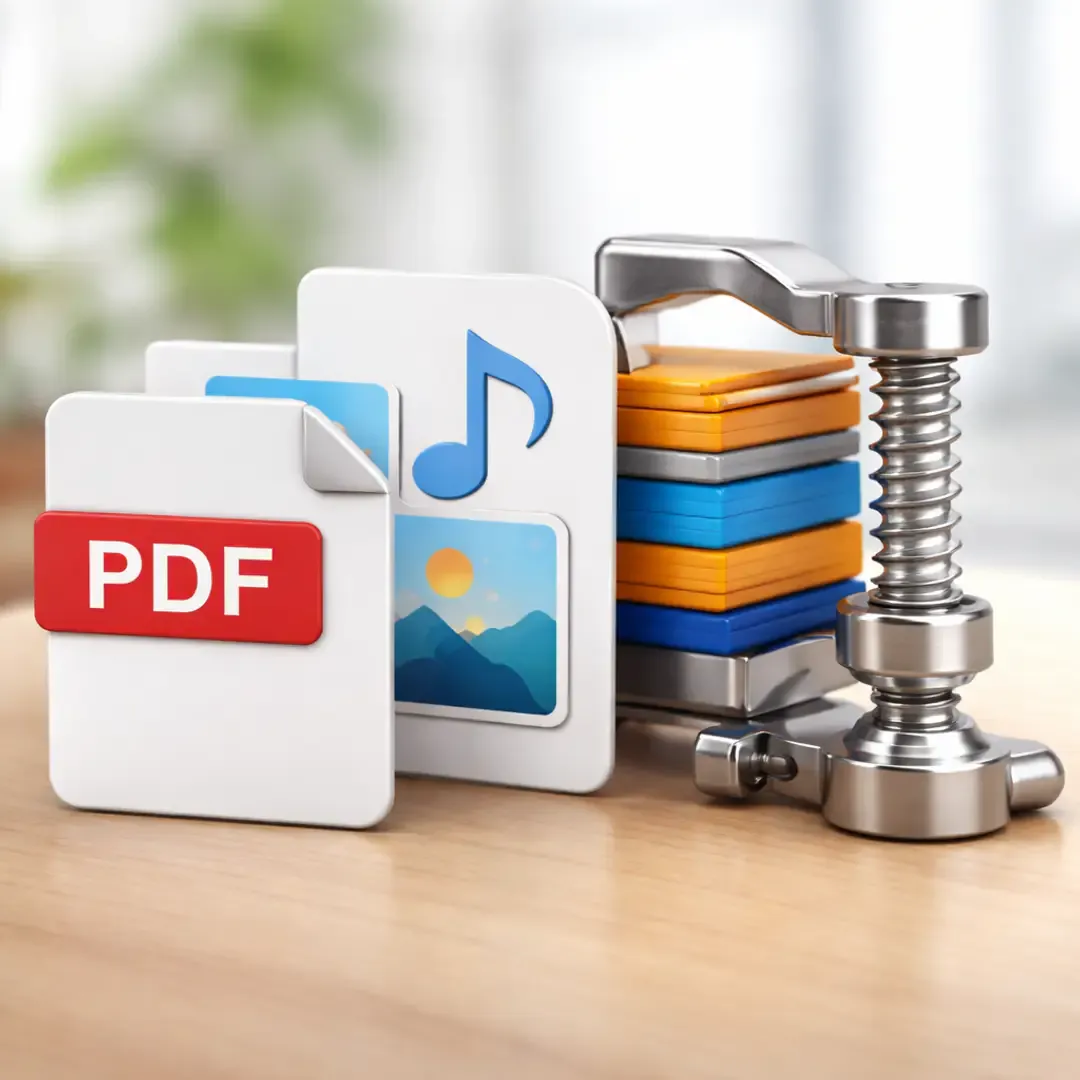
PDF, Image, Audio: The Practical Guide to Converting and Compressing Files in 2026
In 2026, “sending a file” still shouldn’t feel like moving house.
And yet: PDFs that won’t email. Photos that upload sideways or weigh 12MB each. Audio that sounds fine but somehow turns into a storage-eating monster. Most of this isn’t user error. It’s just that file formats were designed for different worlds: printing, archiving, streaming, editing, sharing.
This guide gives you a simple rulebook for deciding what to do in the moment: compress, convert, or archive, without accidentally wrecking quality or compatibility.
The modern rulebook: compress, convert, or archive
What each action does to quality and compatibility
Compress means: keep the same format, make it smaller.
You’re trimming waste, not changing the file’s “identity.” This is perfect when the recipient can already open the file, but it’s too heavy to send or slow to load.
Convert means: change the format so it behaves better somewhere else.
This is what you do when a file causes friction, like HEIC photos that won’t upload, or a document format someone can’t open. Conversion can also shrink size, but its main job is compatibility.
Archive (ZIP/7z) means: bundle things for transport.
Archiving is great for keeping folders tidy and sending “one thing instead of twenty things.” It may reduce size for some file types, but it’s not guaranteed, especially for media that’s already compressed (like JPG and MP4).
The quiet truth: people call everything “compression,” but only one of these actions reliably fixes each kind of problem.
How to decide in 30 seconds
Ask yourself three quick questions:
- Can the other person/system open it?
If no, convert.
- Is it already the right type, just too big?
If yes, compress.
- Is the real problem “too many files” rather than “too much size”?
If yes, archive (bundle), and optionally compress the big items inside.
If you remember nothing else: compatibility problems want conversion, weight problems want compression, mess problems want archiving.
PDFs: shrink without breaking readability
PDFs are often heavy for boring reasons: huge embedded images, extra fonts, hidden objects, and “print-ready” settings being used for a screen-only world.
Image downsampling and text clarity
Most PDF size comes from images, not text. So shrinking PDFs usually means reducing image weight inside the file.
The key is to downsample images without turning text into mush. If the PDF is meant to be read on screens, you can often reduce image resolution and apply sensible compression while keeping text crisp. Tools like Adobe Acrobat’s optimization options explicitly call out downsampling/compressing images as a major lever for reducing PDF size or you can use online tools such as documents.io without having to download any software.
A simple sanity test: open the optimized PDF on your phone and zoom in on the smallest text. If it stays clean, you’ve found the safe zone.
Font embedding, subsetting, and flattening
Fonts can add surprising weight, especially if a PDF embeds full font families when only a few characters are used.
Optimization tools often let you subset fonts (embed only the characters used) or remove unused embedded fonts to shrink size.
Flattening is the “handle with care” option. Flattening transparency and complex layers can reduce size and improve compatibility, but flattening the wrong things can reduce editability or, in some workflows, rasterize elements you wanted to remain crisp. If the PDF needs to be editable later, keep a master copy and optimize a separate “share” copy.
Screen vs print versions (and how to keep both)
A lot of PDF pain comes from using one file for two jobs.
Print PDFs are built for printers: high-res images, extra data, maximum fidelity. Screen PDFs are built for reading and sharing: smaller images, faster rendering, easier downloads.
The best workflow is to keep both. Store a “print master” and also export a “screen version” for email/LMS/web uploads. The screen version will often be dramatically smaller while still looking perfect at normal viewing size.
Images: formats and workflows that scale
Images are where most teams lose the most time because they try to fix file size with one magic button instead of a repeatable workflow.
The 2026 format landscape (JPG/PNG/WebP/AVIF)
Here’s the practical view:
JPG remains the dependable choice for photos.
PNG remains the choice for transparency and crisp-edged graphics.
WebP is widely supported and often smaller than JPG/PNG for similar quality.
AVIF can be even smaller in many cases, but can be more expensive to encode and isn’t always the simplest operational choice.
By 2025, many sources describe WebP support as slightly ahead of AVIF, with AVIF catching up fast across major browsers, which is why the safe deployment pattern is often AVIF first, then WebP, then JPG/PNG fallback.
If you’re sharing images with unknown recipients, JPG/PNG still win on “zero surprises.” If you’re publishing on the web, WebP/AVIF are usually worth it when implemented with fallbacks.
Resizing strategy and responsive thinking
The biggest image win is still the least glamorous one: resize first.
If your site displays an image at 1600px wide, uploading a 6000px original is just paying storage and bandwidth for pixels nobody sees. Resizing cuts weight without adding artifacts.
Then, once the image is the right size, you compress or convert. This order matters because compression works better (and looks cleaner) when the image isn’t unnecessarily huge.
For web publishing, “responsive thinking” means producing multiple sizes so browsers can choose the smallest appropriate version. Even the best format won’t save you if you serve a 2500px image to a 390px phone viewport.
Metadata and color management basics
Metadata is useful until it isn’t.
Photos often include location data, device info, timestamps, and editing history. Keeping metadata can be helpful for organization, but it can also be unnecessary weight or a privacy risk depending on what you’re sharing.
Color management is the other quiet factor. Some conversions can cause subtle color shifts if profiles are handled differently across apps. If color accuracy matters (branding, product photography), test a few conversions and compare on the devices your audience actually uses.
Audio: smaller files, same listening experience
Audio compression is where people either overthink or underthink. The good news: for most speech and learning content, you can get excellent quality at modest file sizes.
Speech vs music settings
Speech is forgiving in a way music isn’t.
For spoken word, the goal is intelligibility: clear consonants, stable volume, no warbly artifacts. You can often use lower bitrates than you’d ever tolerate for music, especially if the recording is clean.
Music is richer and more complex, so it exposes compression artifacts more easily. If the content is music-heavy, you generally need higher bitrates to preserve quality.
MP3 vs AAC vs Opus basics
MP3 is the old universal adapter. It plays everywhere, but it’s not the most efficient codec anymore.
AAC is typically more efficient than MP3 at similar quality and is widely used across modern devices and streaming contexts.
Opus is widely regarded as highly efficient, especially at lower bitrates, and the Opus project’s own comparisons discuss strong performance in listening tests against other codecs at comparable bitrates.
Practical takeaway: if compatibility is your top concern, MP3 still works. If you want better efficiency in modern ecosystems, AAC and Opus are often better choices, with Opus especially strong for speech at lower bitrates.
Sample rate, bitrate, and mono vs stereo decisions
These are the three knobs that matter most:
Sample rate: For speech, you usually don’t need extreme settings.
Bitrate: This is the main driver of file size and quality.
Mono vs stereo: For a single speaker, mono often makes sense and can cut size without harming the experience.
If you’re compressing lecture audio or voice notes, switching to mono and choosing a sensible bitrate can shrink files dramatically while sounding essentially the same to most listeners.
Quality checks you should actually do
Compression workflows fail when people skip the “does it still work?” step.
Visual checks for PDFs/images
For images: zoom in on the “fussy zones” (text, sharp edges, gradients, shadows). If those survive, everything else usually will.
For PDFs: check the smallest text, any charts, and any scanned pages. If text is crisp and diagrams aren’t smeared, you’re safe.
Listening checks for audio
Listen for three things:
Do S and T sounds stay clean?
Does the voice sound steady (not swishy or metallic)?
Does the volume jump around?
If it passes those, it’s usually good enough for learning content and sharing.
File naming and version control
This is where teams quietly save hours.
Keep originals untouched and label derivatives clearly. A simple convention like “_screen” vs “_print,” or “_web” vs “_master,” prevents accidental double-compression and makes it obvious which file to share.
FAQs
When should I convert instead of compress?
Convert when the file won’t open, won’t upload, or won’t behave in the destination system. That’s a compatibility problem, not a weight problem.
Compress when the file is already in the right format, but it’s too large to send, store, or load quickly.
Which formats are most shareable today?
For documents, PDF remains the universal winner. For photos, JPG is still the most universally shareable, with PNG for transparency and sharp-edged graphics. For audio, MP3 remains broadly compatible, while AAC is widely supported and more efficient in many contexts.
For web publishing, modern stacks increasingly favor WebP and AVIF with fallbacks, because smaller images mean faster pages when implemented safely.
Further Reading